Before signing market data agreements for any trading tool, traders should know whether they are a professional or non-professional user. Click here for information to help to determine your Professional or Non-Professional status.
Non-professional users can sign market data agreements by following the steps below. If you are a Professional, please contact the Warrior Trading support team and use the subject line, "Scanner Data for Professional User."
Please note: If you register as a Non-Professional user and later are identified as a Professional user, the compliance team at QuoteMedia (the market data provider for our scanners), may contact you or ask Warrior Trading to contact you for more information. How to Sign Market Data Agreements (Non-Professional)
First, make sure that you are not running any third-party pop-up blockers or antivirus software on your computer or browser. If you are using a VPN, please disable it to avoid potential issues.
If you haven't already done so, sign into the Warrior Trading Day Trade Dash platform. Click here to learn how to sign in, or click here for the login page.
Once logged in, you should see a widget with a white background called "Quote Agreements Status." Simply click "Sign agreement" to proceed to the next page to sign agreements (see #1 in the illustration below).
If you do not see this widget or exited the page by accident, you should see a scanner widget that states "Your Live data needs to be activated or reactivated". Select "Click here to open quote agreements widget" to get the agreements window to open (see #2 in the illustration below). "Click here for instructions" on this widget will lead you to the support article you are currently viewing.
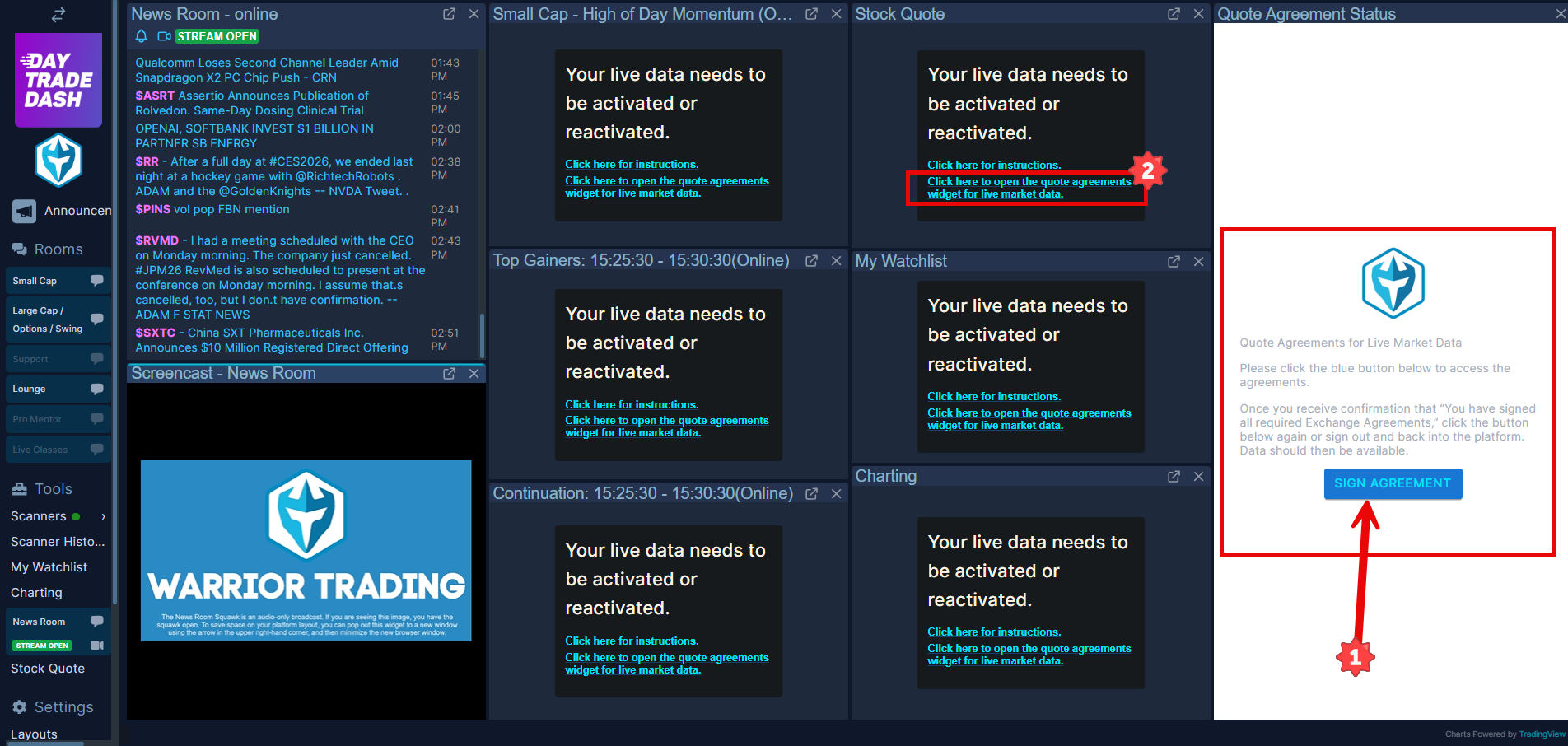
Clicking the blue "Sign Agreement" button will lead you to a market data agreements page from QuoteMedia. Market data providers, like QuoteMedia, are governed by Federal regulations which require information in order to provide you with real-time market data. This agreement form is pretty standard for any live trading tool, so it's good to get some exposure to what this kind of form may look like!
1. Follow the prompts below to complete the agreements as a Non-Professional:
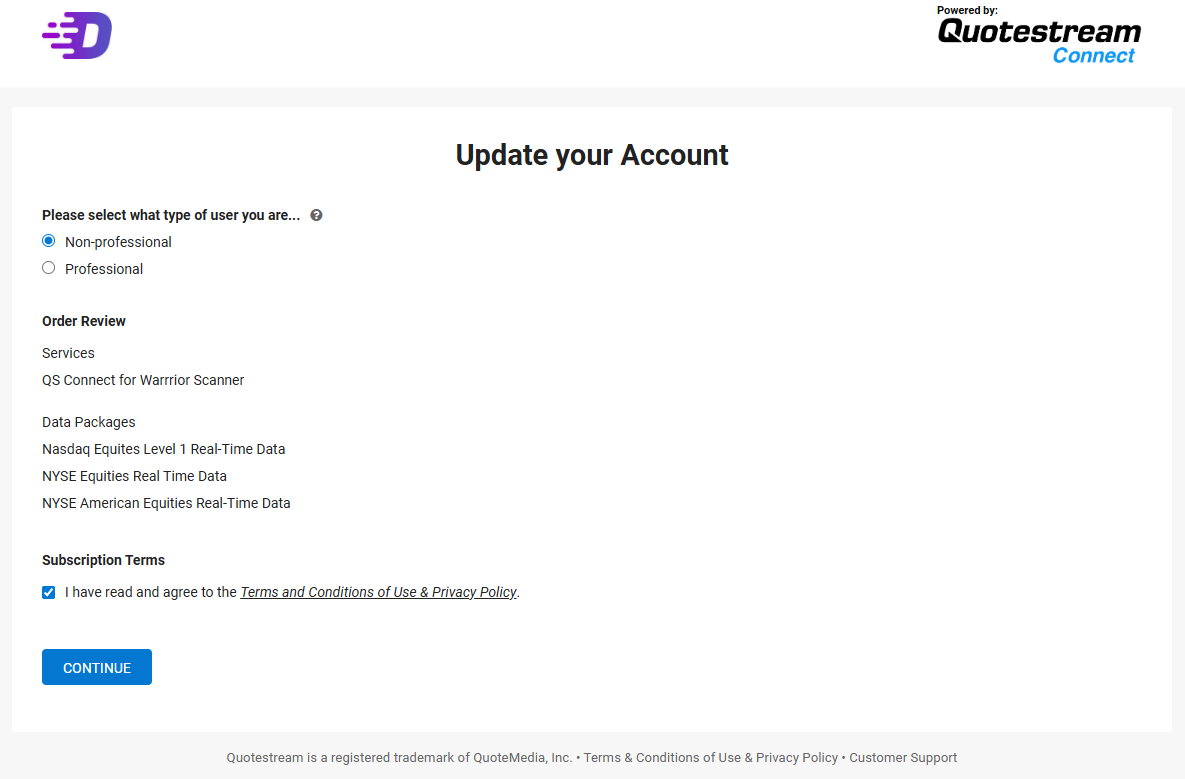
If you are stuck at "Processing" after clicking Submit, check if a new browser tab or window popped up, or make sure any ad-blockers and pop-up blockers are turned off. Click here for information on how to disable a pop-up blocker.
2. Next, review your personal information as indicated in the form.
The fields should pre-populate with the information you provided on your Warrior Trading account, but you can edit this information as needed.
For email address, please make sure to use the same email address you use to sign into your Warrior Trading account. Note if you use a business email address, you may disregard the message on the form that business email addresses are not permitted.
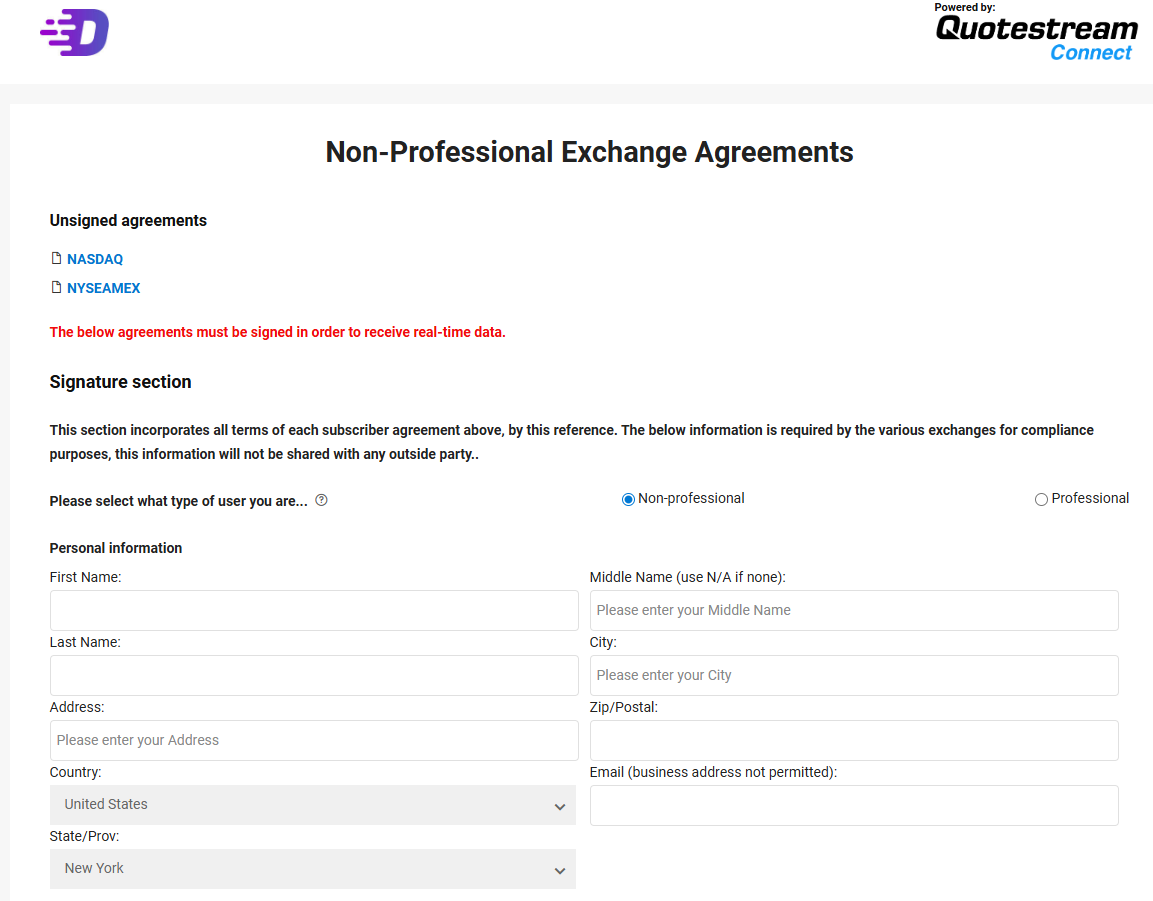
Please check the First Name and Last Name fields for any trailing spaces. If there are any extra spaces after your first and last name, please backspace them, as this will cause an issue when you complete the last step to sign the form.

If you have a middle name, please fill it out on the form as this will help QuoteMedia identify you more easily. If you do not have a middle name, simply input N/A. Filling out this agreement may help the market data provider distinguish you from another person who is registered in the FINRA database as a professional trader. You may receive an email from compliance@quotemedia.com or Warrior Trading to confirm your middle name or other information if you do not fill out the form fully.
3. Your employer information is next.
If you are currently Unemployed, Retired, Self-Employed, or Self-Employed and have established an LLC to trade exclusively for yourself, then please see the respective instructions below; all others proceed with the form as an Employee or Student.
Unemployed or Retired:
Occupation: If you are unemployed or retired, enter either "Unemployed" or "Retired", then add "Previous Occupation was _____." Retirees can check the box, "Retired."
Employer/School/Retiree Name: "Previous Employer/School Name was ____."
Employer/School/Retiree Address: Enter the address for your Previous Employer/School.
Titles/Positions: "Previous Employer/School Titles/Position was ____."
Employment/Student Description: "Previous Employer/School Description was ____."
Self-Employed (did not create an LLC for trading tax purposes):
Occupation: If you are self-employed, provide one or two words that best describe the type of business or field your business is engaged in (e.g., Landscaping, Automotive Sales, Restaurant Owner, Insurance, Real Estate, Information Technology, etc.).
Employer/School/Retiree Name: Name of business recognized by the IRS.
Employer/School/Retiree Address: Provide the address used and recognized as your business address. It is ok if this is also your residence.
Titles/Positions: Examples include Owner, President, etc.
Employment/Student Description: Short description of what your business does.
Self-Employed (non-Professional created an LLC for trading exclusively for yourself):
Setup and sign your market data agreements as an individual, not your LLC. List your LLC as your employer.
Occupation: If your main occupation is trading exclusively for yourself, then you can list Trader. Be sure to include other occupations, if applicable.
Employer/School/Retiree Name: Name of your LLC as recognized by the IRS.
Employer/School/Retiree Address: Your business address. It is ok if this is also your residence.
Titles/Positions: Examples can include Owner, President, etc.
Employment/Student Description: Trading [equities, options, other] exclusively for personal use.
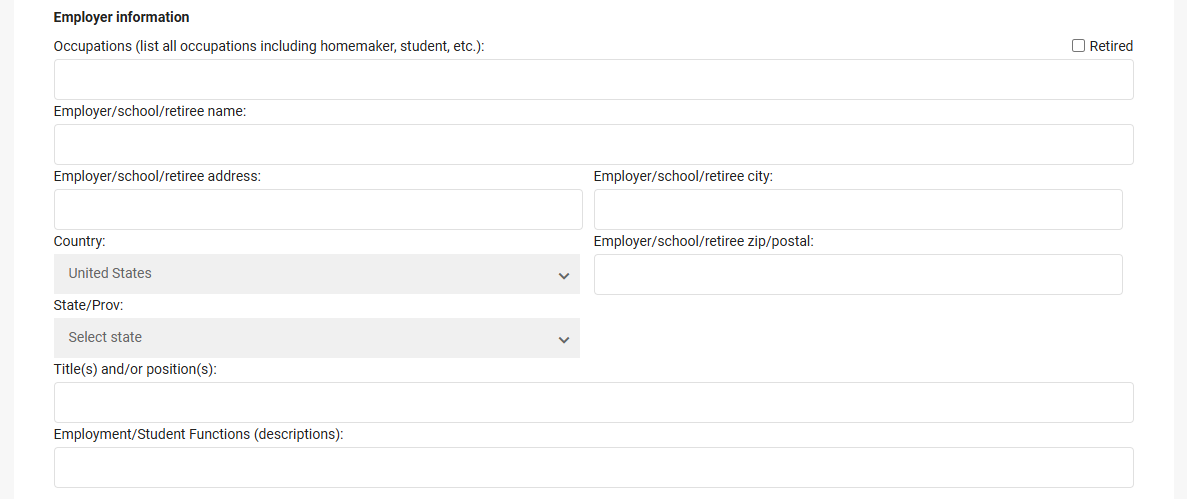
If you get an error message that you need to fill out employer functions and you have already done so, try simplifying the content in this field if what you have typed is very long.
4. Complete the Verification Questions.
Please review each question individually to determine the correct answer for you.
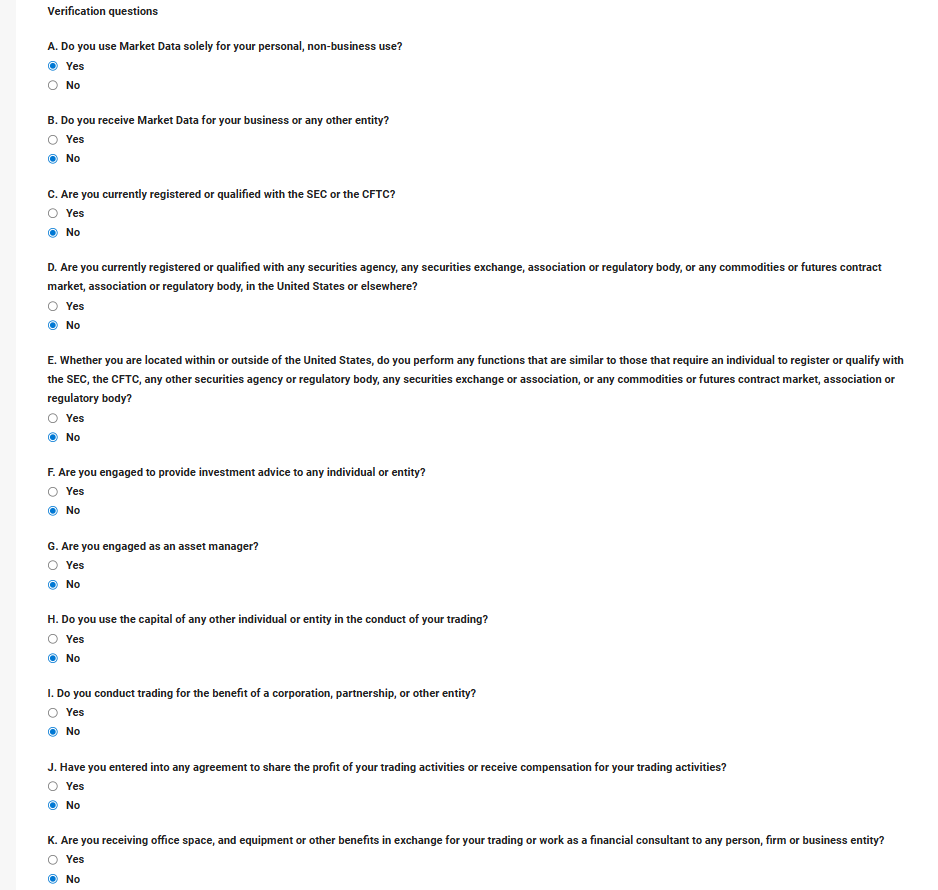
5. Agree and Sign.
Review and confirm the conditions you agree to, then type your first, middle (use N/A if none), and last name in the signature field exactly as you entered it above. Click "I Agree" to complete your market data agreement.
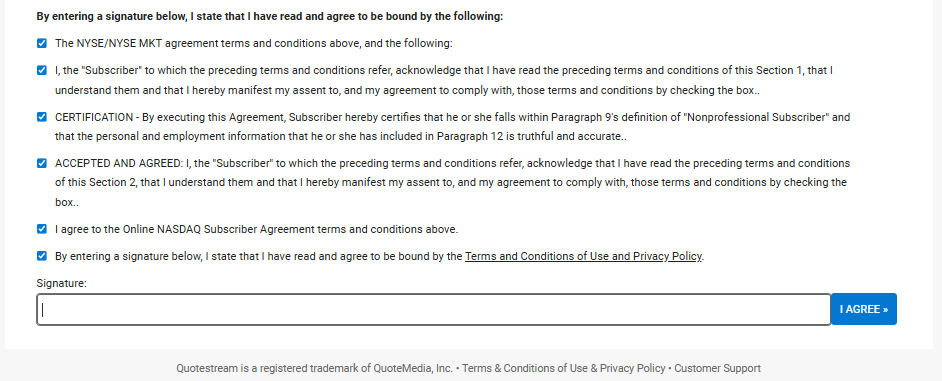
What you enter for your signature must match what you have in the First Name and Last Name fields for the Personal Information section exactly. If you receive an "Invalid Signature" error, please confirm that there are no extra spaces in the Personal Information section and that your signature matches your name exactly.You will see a confirmation page, once completed. From this page, you can print your agreements, or simply select "click here to continue" to return to your Member's Dashboard.
You'll now have live market data upon entering the chat room and accessing scanners. If for some reason you have signed agreements successfully and still do not see data, simply refresh your page or log out and back into the platform.
If you continue to have any issues receiving scanner data, please feel free to email us at team@warriortrading.com or submit a ticket using the link below. For fastest assistance, please make the subject line of your email or ticket "Scanner Issues."