Browser-based technical issues are very common, and many can be resolved by refreshing or clearing cache.
How to Perform a Hard Browser Refresh
While on your browser window, perform a hard refresh by doing the following on Windows OS:
- Google Chrome or MS Edge: hold Shift and press F5
- Firefox: hold Ctrl and press F5
How to Clear Browser Cache and Cookies
Click the links below that correspond to the browser you are using to learn how to clear cache and cookies:
Adjust Browser Settings to Automatically Clear Cookies for a Site
It can sometimes be very helpful to change your browser settings so that it cleans the website cookies after each browser exit. This can reduce/eliminate issues you might encounter down the road.
For Google Chrome:
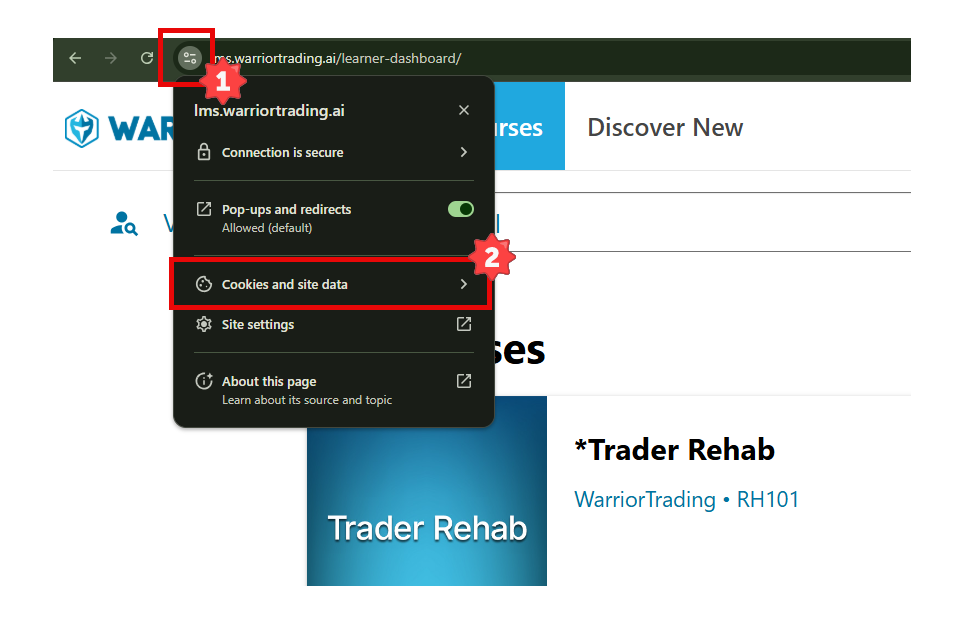
When you are in the Education Portal, start by clicking the icon in the Chrome as per the screenshot, then click Cookies and site data.
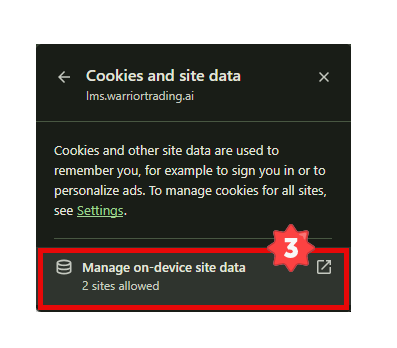
From the next dialog box, click "Manage on-device site data".
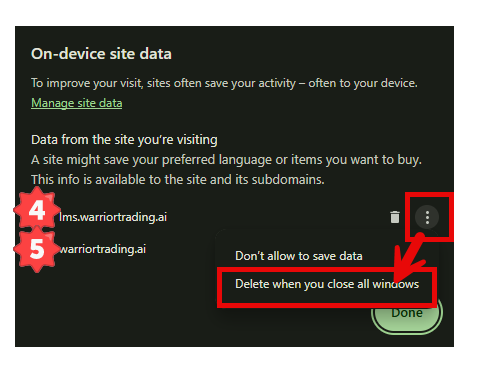
For each of the sites, select the three vertical dots, then "Delete when you close all windows".