Most popular articles
- How to Use Warrior Trading's Live Trading Platform (Community and Day Trade Dash)
- Class Syllabus | WT
- Member Educational & Content Updates | WT
- How to Sign Market Data Agreements for Scanners, Charts, Web Simulator | WT
- Compatibility & System Requirements: Day Trade Dash Platform, Chat Rooms, Live Stream, Web Simulator | WT
- Scanners: How to Load & Use Them in the Chat Room | WT
Videos
The article below is designed to help Pro Preview members get started with their trial access.

Not a Pro Preview member yet? Click here to buy the Pro Preview.
What is the Warrior Pro Preview Trial?
The Pro Preview is $19 and gives you 14 calendar days of access to the first 6 chapters of the Basics class, 1 chapter of the Strategies & Scaling class, 4 recorded mentor sessions, 3 member interviews, and 3 live trading room archives.
It also includes access to Ross's full low latency broadcast, access to our live trading rooms (hear/view only), breaking newsfeed, scanner and charting tools, and the ability to attend live classes and mentor sessions.
Note the Warrior Trading Simulator (and Level 2) is not included in the 14-Day Pro Preview Trial.
If you are not a Pro Preview trial member and wish to learn more, click here: https://warrior.app/pro-preview (Please note that the Pro Preview is limited to one purchase per person).
I signed up for the Pro Preview -- how do I access the trial?
Start by signing into the Member Dashboard using this link: https://www.warriortrading.com/login-member/. If you need help signing on, please follow the instructions here: Signing into the Member's Dashboard (Warrior Trading Member Site) | WT : Warrior Trading
Once you are on the Member Dashboard, you can access all your Pro Preview content (see illustration below).
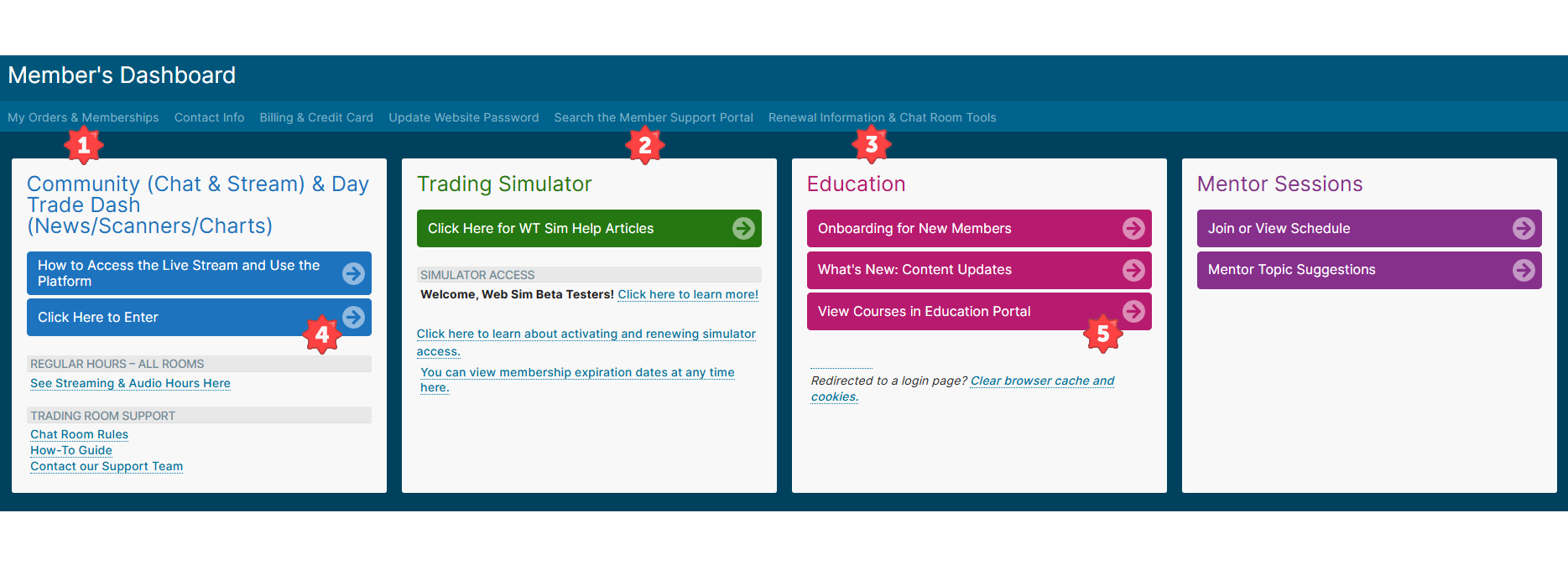
- My Orders and Memberships - Displays your subscriptions and memberships and their respective status and expiration date.
- Search the Member Support Portal - Your go-to location for detailed support articles and a link to submit a support ticket.
- Renewal Information & Chat Room Tools - Contains information to renew or add a subscription to your membership.
- Community and Day Trade Dash - Access the main page where you will find Chat Rooms, Live Streams, News, Scanners, and Charts.
- Education Portal - View your courses and continue your trading education.
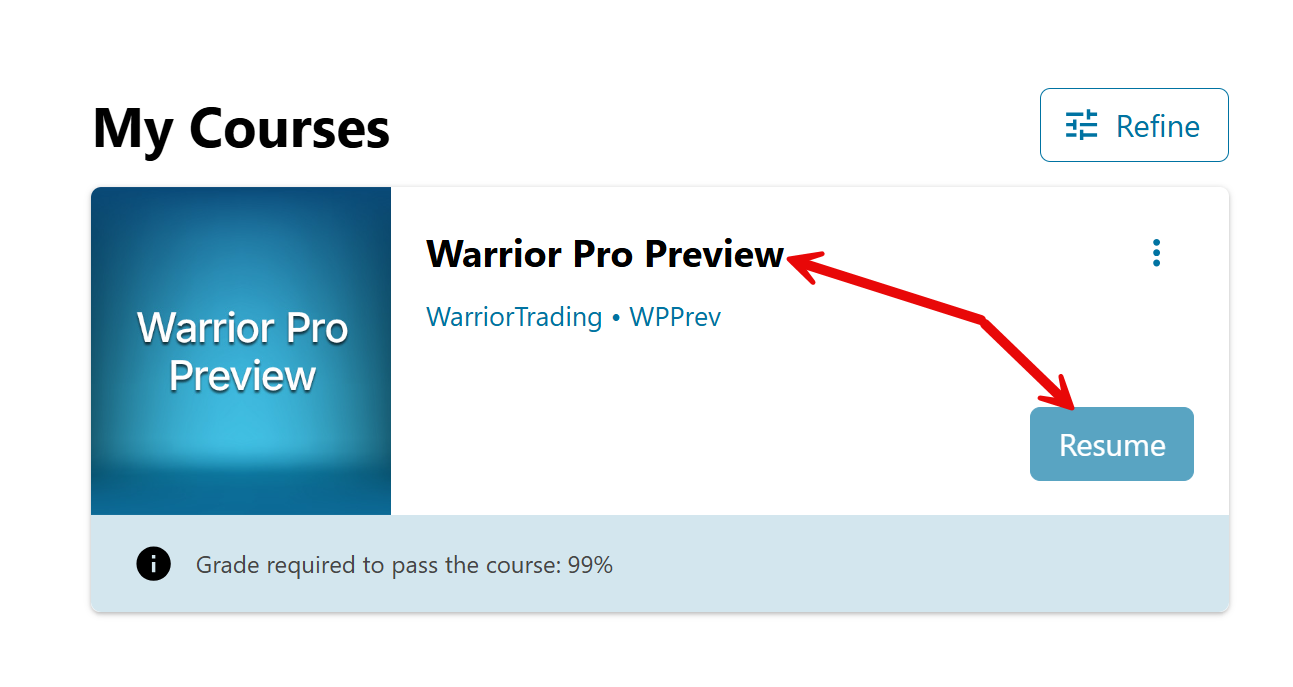
Warrior Pro Preview Education Portal - My Courses
The following image displays the Warrior Pro Preview course.
Click the course name, 'Warrior Pro Preview', or the "Start" / "Resume" button to access the first 6 chapters of the Basics class, 1 chapter of the Strategies & Scaling class, 4 recorded mentor sessions, 3 member interviews, and 3 live trading room archives.
Below are links that will be helpful for the Pro Preview as well:
- Education Portal Access: View or Find Classes in Your Membership
- Chat Room & Live Stream Access: Signing into our Live Trading and Chat Room and Live Stream Hours
- Day Trade Dash Scanner Access: Scanners: How to Load & Use Them in the Chat Room
- Day Trade Dash Charting Access: Charting Resources
- Day Trade Dash News & Squawk Audio Alerts: News Room and Squawk Audio Alerts
- Mentor Session (Live & Recorded) Access: Accessing the Live or Recorded Mentor Sessions
REMINDER: The purpose of our trial is not to encourage customers to go live within the trial period and expect to trade profitably, but rather to explore our community and tools and see if we might be the right fit to learn from. Trading is a challenging career. Even for those who seek education, not everyone will be able to properly grasp the subject of trading and become consistently profitable in the long term. Education is the best path forward -- however, it takes time, as does practicing in a simulator. Read more here.In a rush to access the live stream? Click here and come back to this full video later.
Please see the video below for a demo highlighted some of the key features of Warrior Trading's platform for community (chat and live stream) and Day Trade Dash (news, scanners, and charting).
Our platform was updated on May 16, 2025, and the live stream features are now more intuitive.
FAQ / Helpful Links:
- How to Sign Market Data Agreements for Scanners and Charts
- Layouts:
- Platform Alert Settings
- Live Stream:
- Chat Filtering
- Reporting Chat Room Violations
- Customizing Your Profile
Troubleshooting Basics:
- Click here to check your browser and platform compatibility.
- After confirming compatibility, click here for platform troubleshooting.
In this article, learn about:
- Terminology for Platform Layouts
- Types of Layouts
- Adjusting Platform Layout
- How to Save Individual Window Layouts
- How to Save all Platform Windows as Default (to appear on your next login)
- How to Load, Pop Out, or Delete a Layout
- Troubleshooting Pop-Out Windows
- Bonus Video: Layout Walkthrough with Ross
Note that this article provides information in video format directly below, as well as in written instructions with visuals beneath. Feel free to use whichever format works best for your learning style.

Please also note that this article talks about our web-based platform for the Warrior Trading chat room and Day Trade Dash (news, scanners, and charts). If you are looking for layout information for the WT Sim or specifically for charting widgets, please use one of the links below:
-WT Sim layout information
-Day Trade Dash charting layout information
How to Save and Load a Single-Window and Multi-Window Platform Layouts
Terminology for Platform Layouts
Widget: A widget is an individual box within the Warrior Trading platform for rooms or tools which can be selected from the left sidebar. The image below identifies a chat room widget (yellow outline), a charting widget (blue outline), and a stock quote widget (white outline):

Window: This term refers to your browser window that displays our platform and may hold multiple widgets within it. The image above is one window.
Main window: This is the first window that appears when you enter the platform, and from which you may pop out other windows.
- If your profile picture is visible on the bottom left of the window, this will indicate it is the main window.
- The pop-out function only works from this main window.
Pop-out window: This refers to any browser windows created from your main window by either using the pop-out feature on the top right of the window or the pop-out feature from the layout settings.
- Currently, you are only allowed a maximum of 5 extra pop-out windows.
- You cannot pop out a new window from a pop-out window.
Layout: a specific arrangement of widgets within one window.
- You are currently allowed an unlimited number of chart widgets per window.
- Only one of each widget is allowed per window for the chatrooms, watchlist, or individual scanner.
- These are divided into three categories, shown below.
Types of Layouts
- Warrior Trading Window Layouts: These are publicly available layouts of one window layout, curated by our team.
- You cannot edit this layout, but you can save new personal layouts based on it.
- The green "D" in this section (as shown below) identifies which layout is set as the default layout for new users.

- Personal Window Layouts: layouts of one browser window that you created and saved
- There is currently a limit of 5 personal window layouts. If you reach this limit, you will see: Windows Limit Reached

- There is currently a limit of 5 personal window layouts. If you reach this limit, you will see: Windows Limit Reached
- Platform: The part of the Warrior Trading website for Day Trade Dash and chat room.
- The platform should save upon logging out. You can ensure the saving of your whole platform through one of the methods below.
- The platform includes all browser windows and pop-out windows connected to your main window.
- This is an example of how a 2-window platform layout might look:

Adjusting Platform Layout
Watch the video below for a full demonstration of how to add windows and widgets and adjust layouts.
If you are having trouble getting external / popped-out windows to appear when loading a layout, please remember to check if your pop-up blocker is interfering.
How to Save Individual Window Layouts
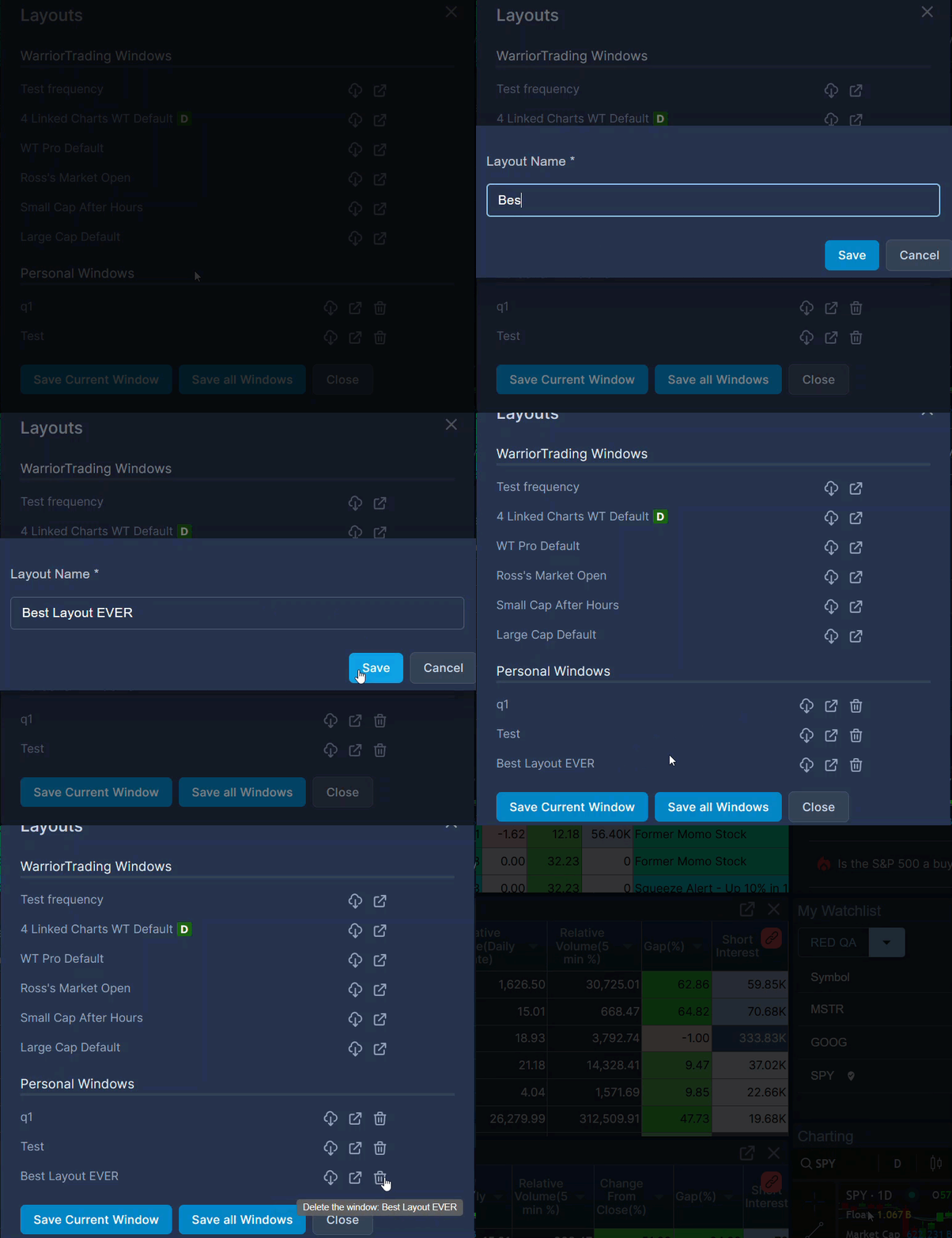
It is useful to have individual browser windows saved to be cloned later or to load individually in the future. To save the layout of widgets populating the browser window you are currently using, follow these steps:
- Make your preferred layout in one window.
- In the same window, go to Layouts > Save Current Window.
- Enter a name that will help you identify the layout.
- Click Save.
- Repeat the process for any other windows if you have a multi-window layout or if you have plans to clone this one window in the future.
How to Save all Platform Windows as Default (to appear on your next login)
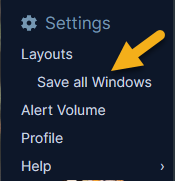
This is the feature for saving layouts that most members will want to use to ensure all their layouts and widgets save at once.
Simply go to the Layouts section of Settings on the left-hand menu, and click Save all Windows.
If you are logging out for the day, you can save and logout by clicking your profile picture in your main window, followed by Save & Logout.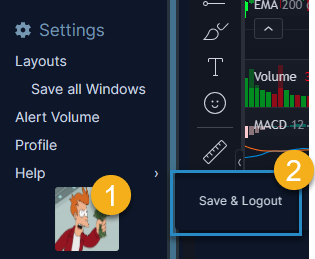
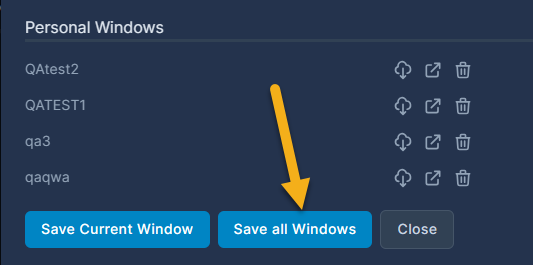
If you are already viewing your layouts, we also give you the chance to save all your windows there:
- In your main window, click Layouts > Save all windows as Default.
- A gray indicator will appear, showing the save was successful and a timestamp. You can click Close to exit.
Error: Changes to Default Charts Not Saved
This error may appear in one of two ways, depending if you are trying to save your layout from the Settings or using the Save & Logout function:
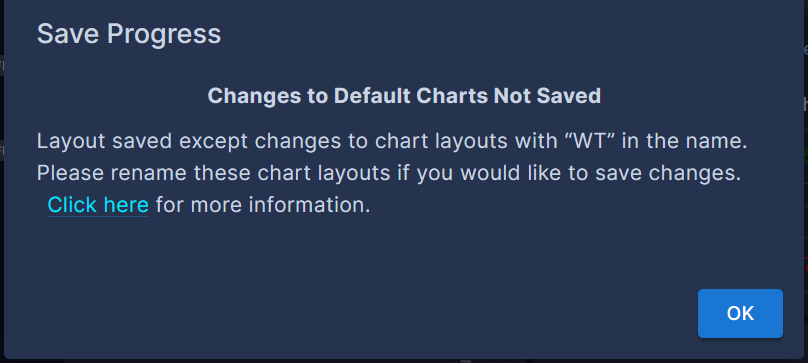
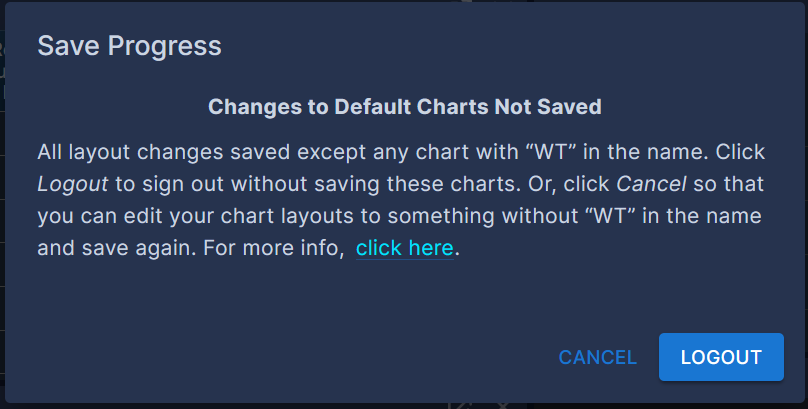
This error means that while most of your platform layout has been saved, changes to the default chart templates have not been saved. Default charts are any charts currently on your layout that have "WT" in the chart layout name.
If you want to keep your layout saved with the default "WT" charts, no further action is needed.
However, if your intention is to save an edited version of these charts, please follow this link to our charting support article to learn how to rename your chart layouts. Then, save your platform layout again.
How to Load, Pop Out, or Delete a Layout
For all your personal layouts, you can choose from the following:

- Load the layout: This will load the layout in the same window you are using and replace what you currently have.
- Pop up the layout: This will load the layout in a new window.
- Delete the layout: This will delete this saved layout.
Troubleshooting Pop-Out Windows
If you are having trouble getting external / popped-out windows to appear when loading a layout, please check if your browser is blocking pop-ups. If you are not familiar with your browser's pop-up settings, this article may help.
Bonus Video: Layout Walkthrough with Ross
The video below is outdated as of March 2025, and we have since made updates to our save and load layout functions (described above); however, it is still relevant for all other platform usage and layout functions.
Additional helpful platform functions:
- How to Customize Announcements & Broadcast Notifications
- What the Different Buttons and Icons Mean
- How to Perform a Hard Browser Refresh (helpful for troubleshooting)
- How to Adjust Chat Filters
This article talks about:
- How to Access Charting
- How to Use the Charting Platform - General Walkthrough
- Markets, Data, and Hours Available
- How Warrior Trading Charts Compare to TradingView
- Additional Information
How to Access Charting
To access our charting platform, you must:
- Have an active tools subscription with charting access (members can add charts via the Renewal Information & Chat Room Tools page), and
- Use a system that meets the minimum system specifications specified here.
Members with charting access can open the software by following the steps below:
- Sign into the live trading room platform (click here for detailed steps)
- In the platform, click the Charting button that appears on the bottom left-hand side under Tools. This will add a new chart widget to your chatroom window.

- If you receive a message indicating that you need to sign the market data agreements, follow the prompts to activate or reactivate live market data, and then sign out and back into the live trading room platform.
Mobile users, please read about the mobile experience here, and keep in mind that:
- Only one window or chart can be used at one time.
- Your chart widget will have full capabilities besides color window linking.
How to Use the Charting Platform - General Walkthrough
The video below is a demo of our charting platform and features. For more details about the individual features of the platform, please be sure to also review other support articles.
Tip: Most features and icons will display more information if you hover over it for more than 2 seconds.
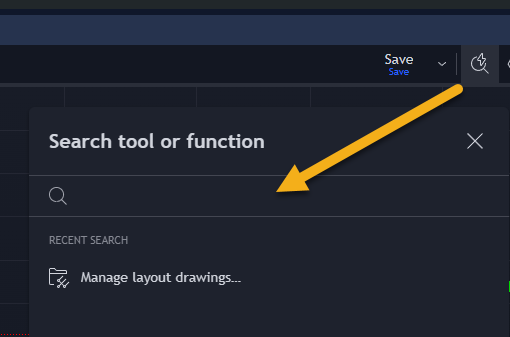
There is also a new search feature that can help you search for drawing tools and functions. Look for the traditional search icon with a lightning bolt (see the below screenshot) to access this feature.
Markets, Data, and Hours Available
Charting is available 24/7. However, live market data from the exchanges is only available from 4 am EST to 8 pm EST.
Our charting software includes all US Equities and ETF level one data:
- NYSE Level 1- Tape A
- Amex Level 1 - Tape B
- Nasdaq Level 1- Tape C
It does not include the following:
- Level two data
- Forex
- Futures
- Crypto
- Non-US exchange data
How Market Data is Interpreted
When it comes to market data for trading, Ross understands that he needs to have the best and fastest data available to help get an edge in the market. At times, it is still possible to see slight differences across vendors when it comes to price and volume data. You should even expect it when subscribing to the same data sources across platforms. That doesn’t mean either source is wrong; it usually reflects different data subscriptions and/or processing choices. Here are the main factors:
- Venue coverage (composite vs. primary-only)
- Some vendors show only the primary exchange’s volume; others show consolidated/composite volume across all lit exchanges plus off‑exchange venues (e.g., FINRA TRFs).
- Including or excluding off‑exchange activity is often the biggest source of variance.
- Session scope
- Inclusion of pre‑market (typically 4:00 to 9:30 ET) and after‑hours (typically 16:00 to 20:00 ET) prints differs by vendor. If one source shows “regular session only” and another includes extended hours, totals will not match.
- Trade eligibility and condition code filtering
- Vendors apply different filters to trade condition codes (like non‑price‑forming, out‑of‑sequence, derivative/benchmark prints, odd‑lots).
- For example, including odd‑lots or certain non‑regular trades will lift volume versus a feed that excludes them.
- Non-price forming data is any trade less than 100 shares. We do not count that as price data for our charts.
- Vendors apply different filters to trade condition codes (like non‑price‑forming, out‑of‑sequence, derivative/benchmark prints, odd‑lots).
- Late reports, cancellations, and corrections
- Exchanges and trade reporting facilities submit late prints and corrections throughout the day, and vendors might delay or batch them. We currently disregard any data 20 seconds or older. This is very important for using our scanners. This is why some intraday totals can diverge and converge later, sometimes only after official end‑of‑day publication.
- Aggregation methodology
- Differences in bar building (tick‑by‑tick vs. conflated updates), minute boundary definitions, de‑duplication logic, and how “as‑of” trades are dated can create small discrepancies, especially intraday.
- We use tick-by-tick data
- Differences in bar building (tick‑by‑tick vs. conflated updates), minute boundary definitions, de‑duplication logic, and how “as‑of” trades are dated can create small discrepancies, especially intraday.
- Feed mix and latency
- Using SIP (consolidated) vs. direct exchange feeds, and the timing/sequence in which messages arrive and are processed, can briefly skew day‑to‑date volume until all messages are reconciled.
In summary, it will be very hard to know for sure the exact reason why another data provider had different data from hours unless we were able to know: composite vs primary‑only; regular‑hours vs full day; whether they include auctions, odd‑lots, and off‑exchange prints; and how they treat late prints/corrections. As it is very possible that the data we can get may be slightly delayed or timestamped to a previous time, depending on when the data is received.
How Warrior Trading Charts Compare to TradingView
Warrior Trading charts are based on TradingView’s software, a popular third-party service that offers a full suite of charting tools and features to help users analyze and trade the markets. To provide our members with a great experience, we have tailored features of this existing software to meet the standards, requests, and expectations of our members.
Our members can use our charts within the same browser window as our chatroom and popular scanners, stock quotes, news, and watchlist widgets. This helps reduce the number of separate platforms, apps, and market data subscriptions that traders need.
Our charts offer a mix of features that are available to Pro+ and Premium members at TradingView. Key features included are:
- Unlimited charts per browser window
- Unlimited indicators per chart
- Up to 6 windows per chatroom layout
- Real-time US market data for sub-second price data updates
- 10-,15-, and 24-second timeframe charts
- Volume profile indicators
- The ability to save custom chart and indicator templates
- A linkable watchlist widget for each chatroom window
- Filtering out of ADF Orders for cleaner charts
The key differences between Warrior Trading Charting and TradingView is that we are not connected to the TradingView community and we do not enable PineScript access. If you create or use any custom Pinescript on TradingView, you cannot use or import those scripts in our platform.
Additional Information
Please remember to refer to our other articles in the charting section of our support portal here to learn more about the features of our charts.