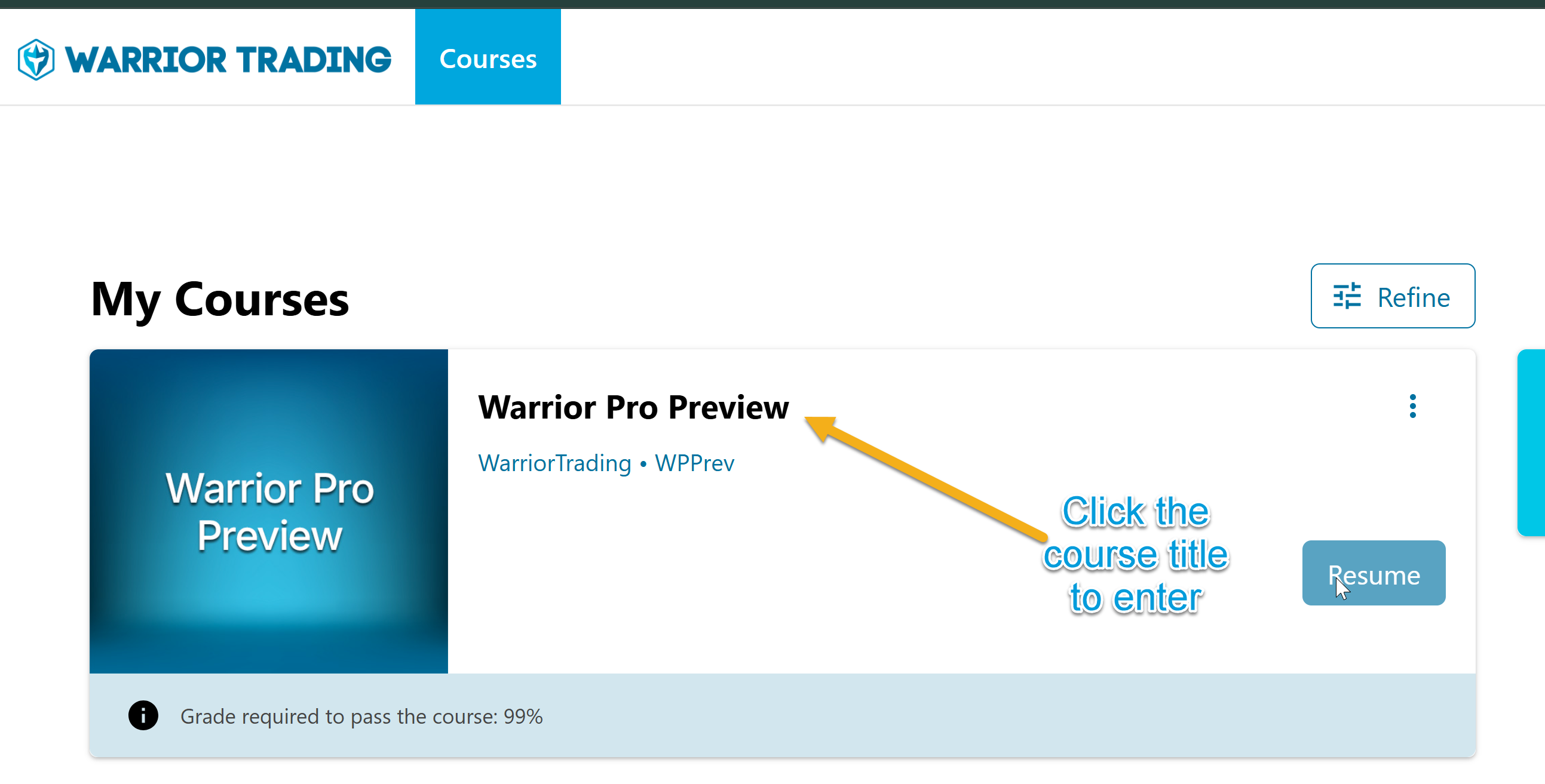
The following guide will explain how to navigate and use the Education Portal to maximize your time while learning. This guide can be used for all membership types, Warrior Pro, Starter, and Pro Preview Trial members.
TABLE OF CONTENTS
- What is in the Education Portal?
- How do I access the Education Portal?
- Finding Content - Search, Sort & Filter
- Utilities - Mark as Complete, Progress, and Bookmarks
- Downloads - Trading Platform Layouts, Chapter Slides
- Troubleshooting
What is in the Education Portal?
The Education Portal contains all the courses and downloads available to you based on your membership level. To view the full list of course materials, please see our syllabus. Below is a summarized list of the courses and content groups that can be accessed via the Education Portal:
- Day Trading: The Basics
- Day Trading: Strategies & Scaling
- Member Interviews
- Day Trading in an IRA
- Algo Scalping Strategy
- Trader Rehab
- Trading Psychology: Developing the Trader's Mindset
- Live Trading Archives
- Platform Demos & Layouts
- High Volatility Momentum Trading (Jess)
- Momentum Trading with TD Ameritrade (Danny)
- Scalping Small Cap Momentum (Max)
- Mentor Session Recordings
How do I access the Education Portal?
Start by signing into the Member Dashboard using this link: https://www.warriortrading.com/login-member/. If you need help signing on, please follow the instructions here: Signing into the Member's Dashboard (Warrior Trading Member Site) | WT : Warrior Trading
Once you are on the Member Dashboard, you can access all your membership content by clicking the pink button, "View Courses in Education Portal" - see illustration below.
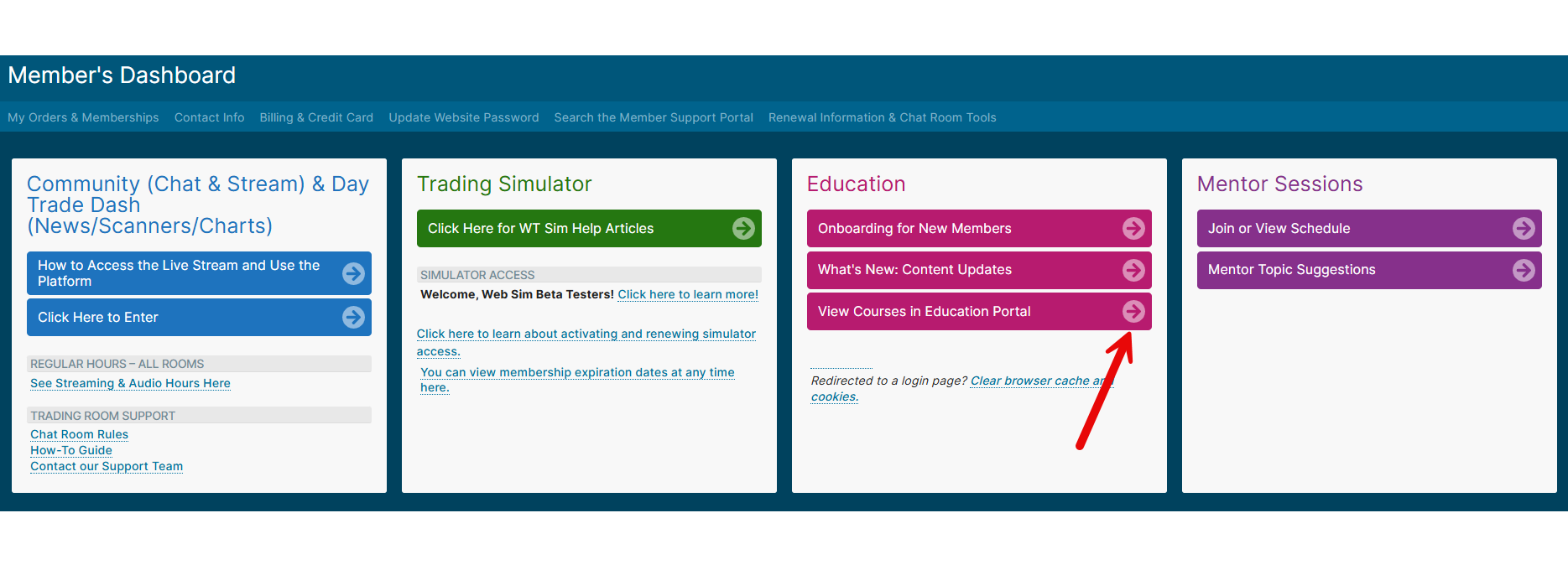
From the next page, scroll down to view all your courses and content (based on your membership).
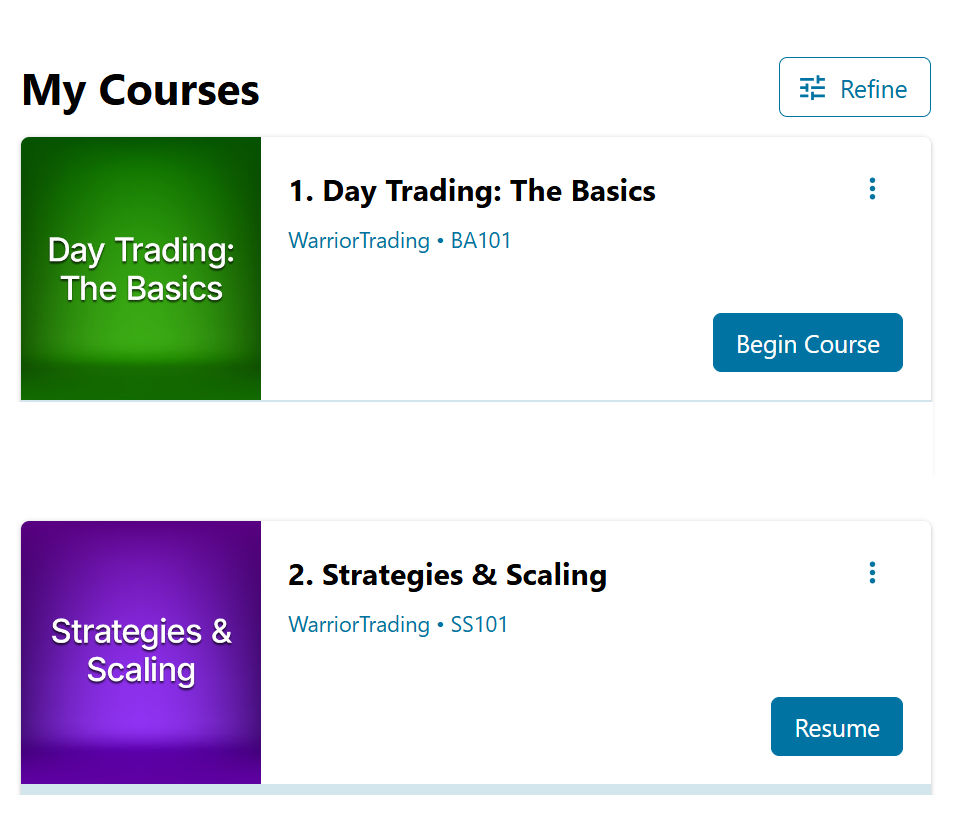
Finding Content - Search, Sort & Filter
There are several ways to find content, courses, and downloads. We will cover Search, Sort, and Filter here.
Search
- Enter a course by clicking the blue button, "Begin Course" or "Resume".
- Click the "Content Search" button on the top right corner of the Course.
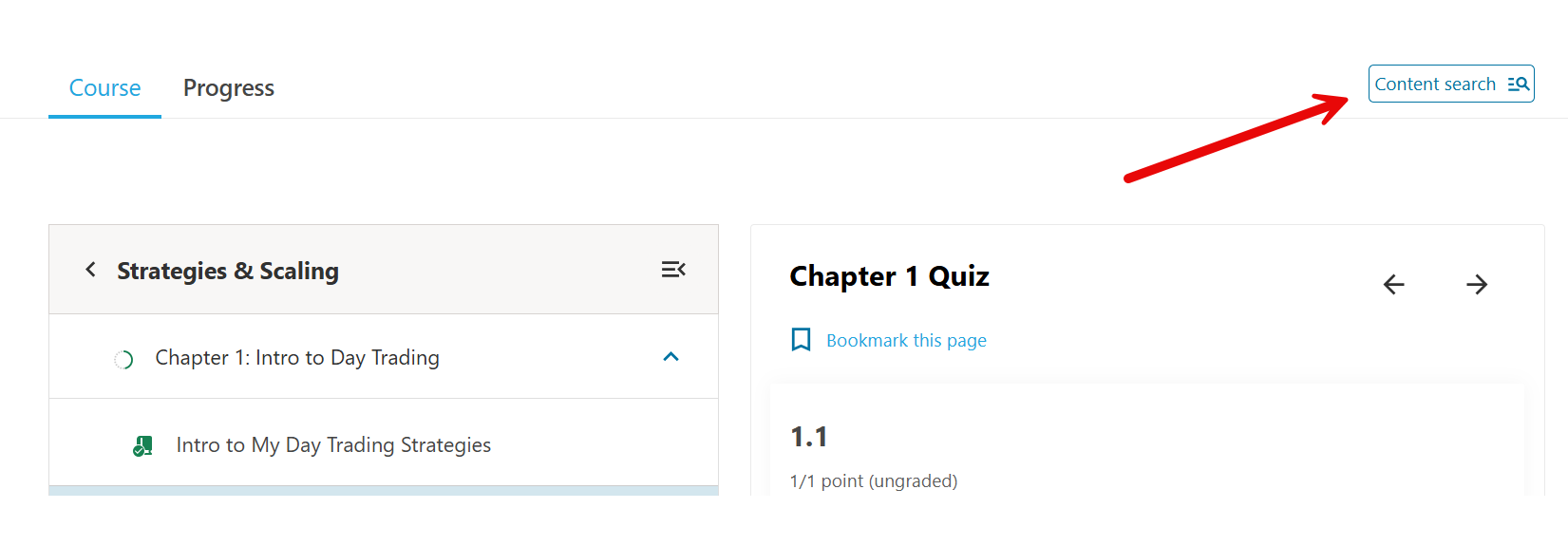
- In the Search Box, enter a key word, phrase, or topic you want to search for. When searching by date, enter in this format: M/D/YYYY (ex: 5/22/2018 for May 22, 2018 or 11/5/2019 for November 5, 2019).
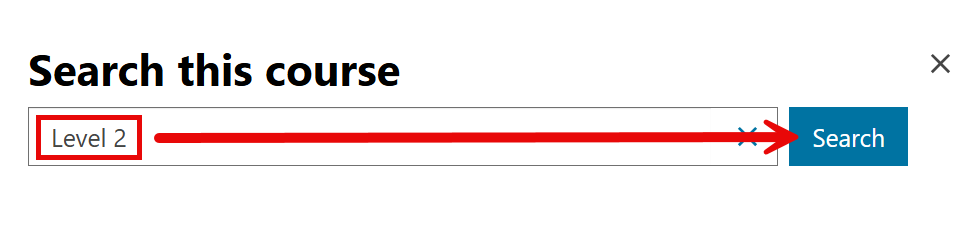
- Click "Search". This will pull up a list of chapters or pages within this course that match your search. In this example, we searched for content with the keyword, "Level 2" from the Strategies and Scaling Course.
Sort & Filter
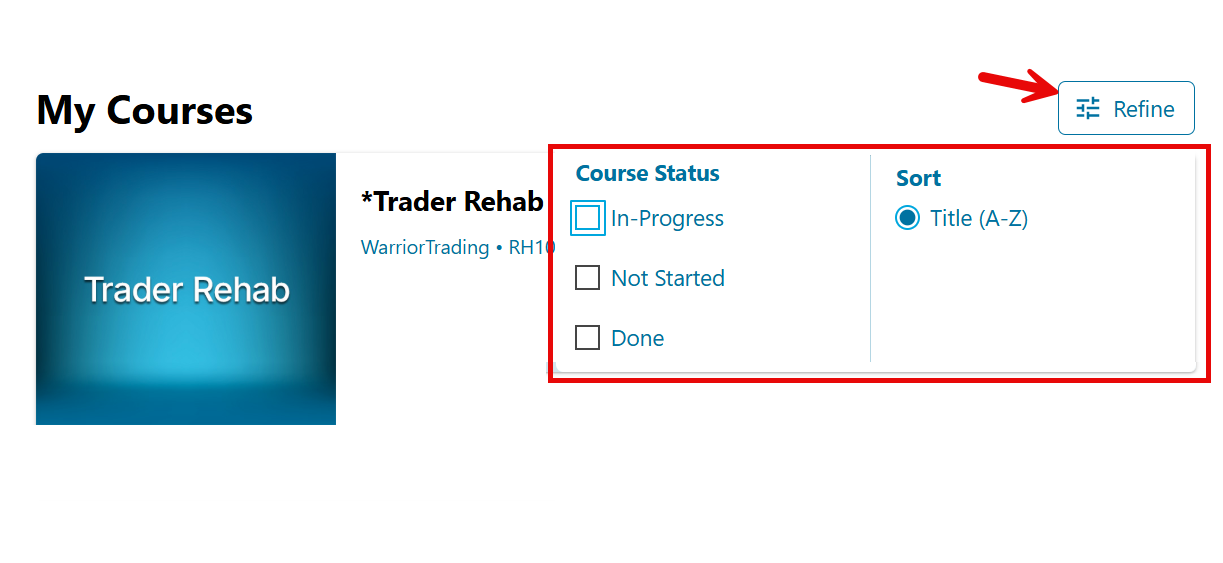
Click the "Refine" button, then click to "Sort" or select courses that are "In-Progress", "Not Started" or "Done".
Utilities - Mark as Complete, Progress, and Bookmarks
Mark as Complete
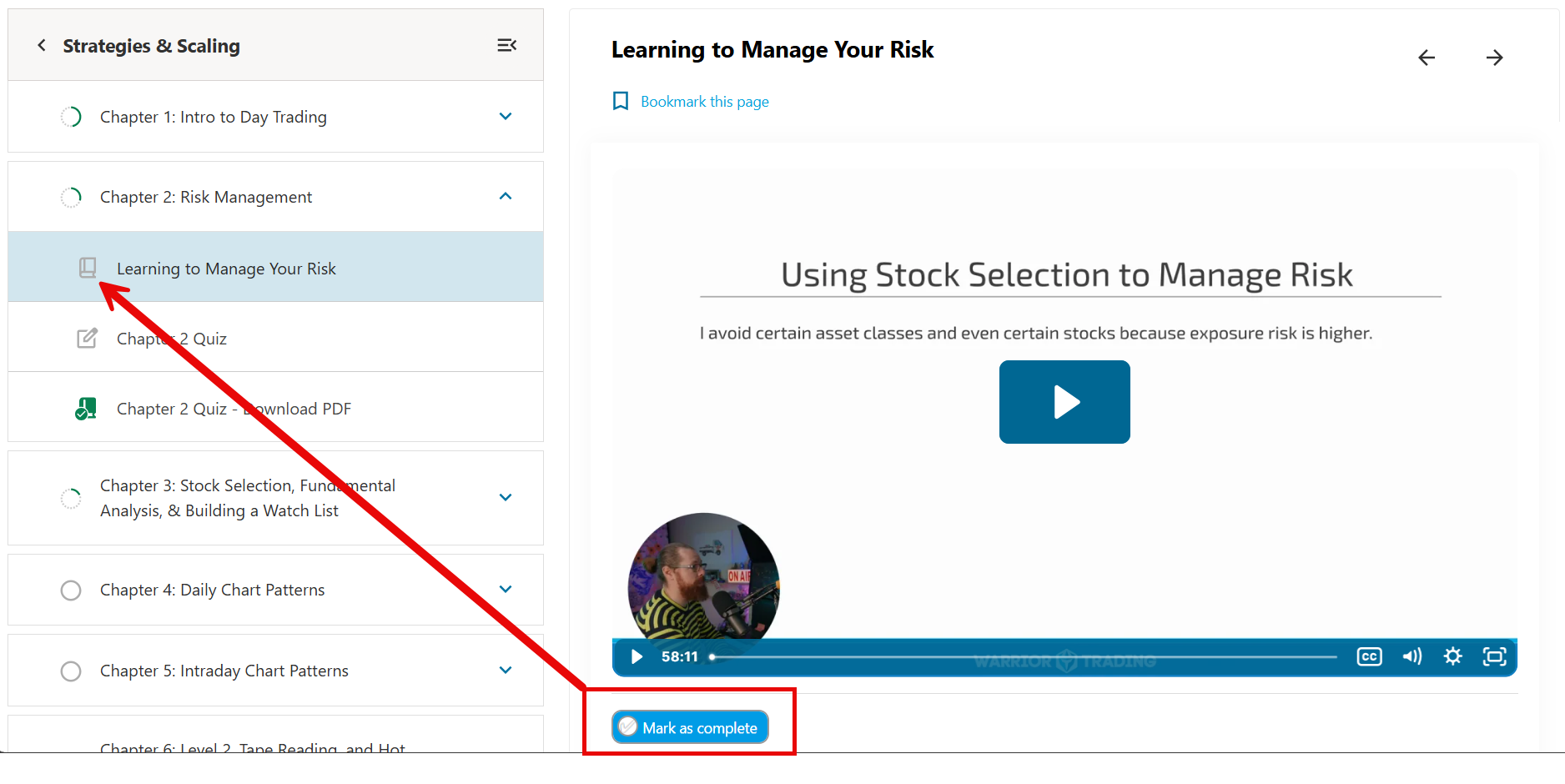
You can manually update your completion status for chapters and content, but not quizzes. For quizzes, you will need to complete the quiz. For everything else, this requires a simple two-step process. Note once your status is marked complete, it cannot be changed back.
- Click on a chapter or part within a chapter and view the content. You need to view this content for a minimal amount of time (5 seconds)
- Next, click the "Mark as complete" button. This will update the status and mark this portion as complete (green checkbox).
Progress and Bookmarks
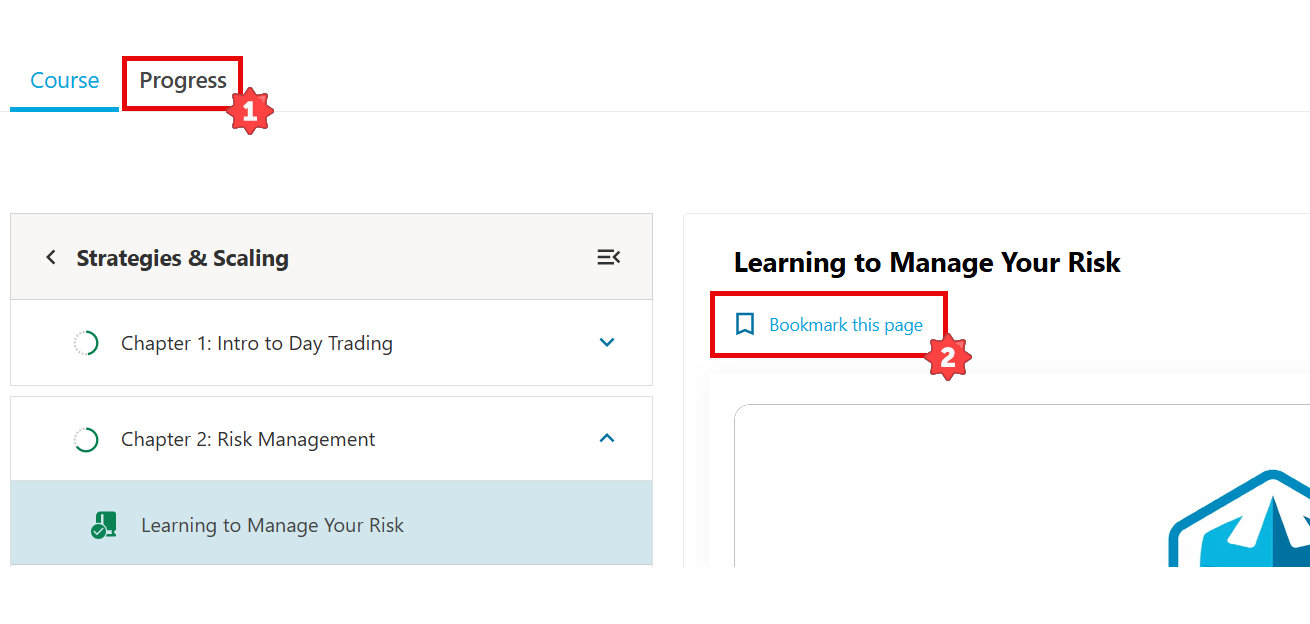
Within a course, you can check your progress for that course by clicking on the "Progress" tab. You can also bookmark the page you to easily return on your next visit. Note bookmarking is solely within the Education Portal and does not create a bookmark on your browser.
Downloads - Trading Platform Layouts, Chapter Slides
Trading Platform Layouts
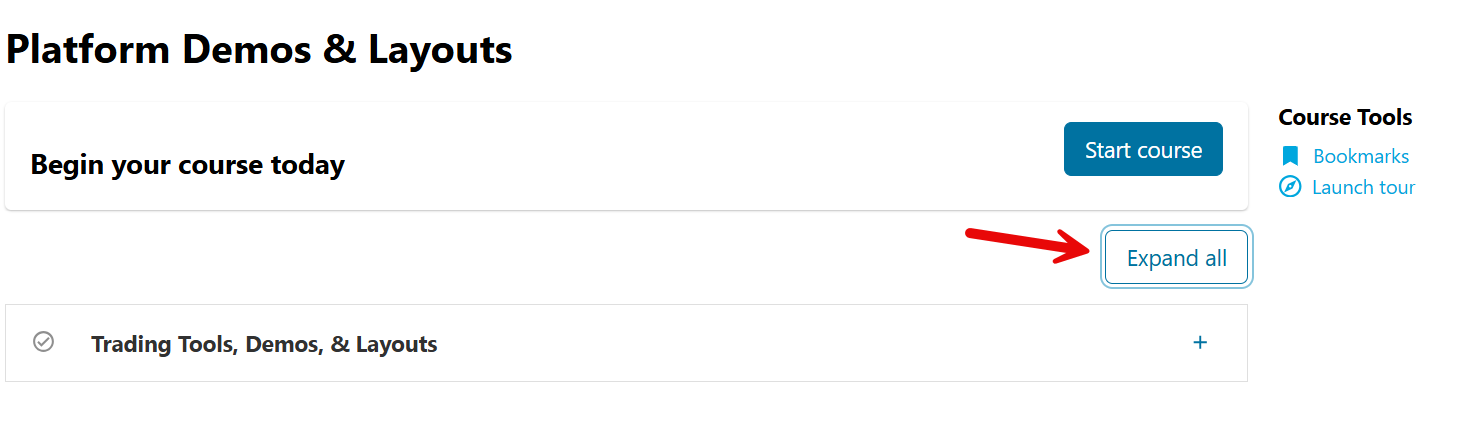
Navigate to My Courses, then click the button to Begin/Resume the "Platform Demos & Layouts" course. Next, click the button "Expand All" to see the full list of layouts.
Chapter Slides (PDFs)
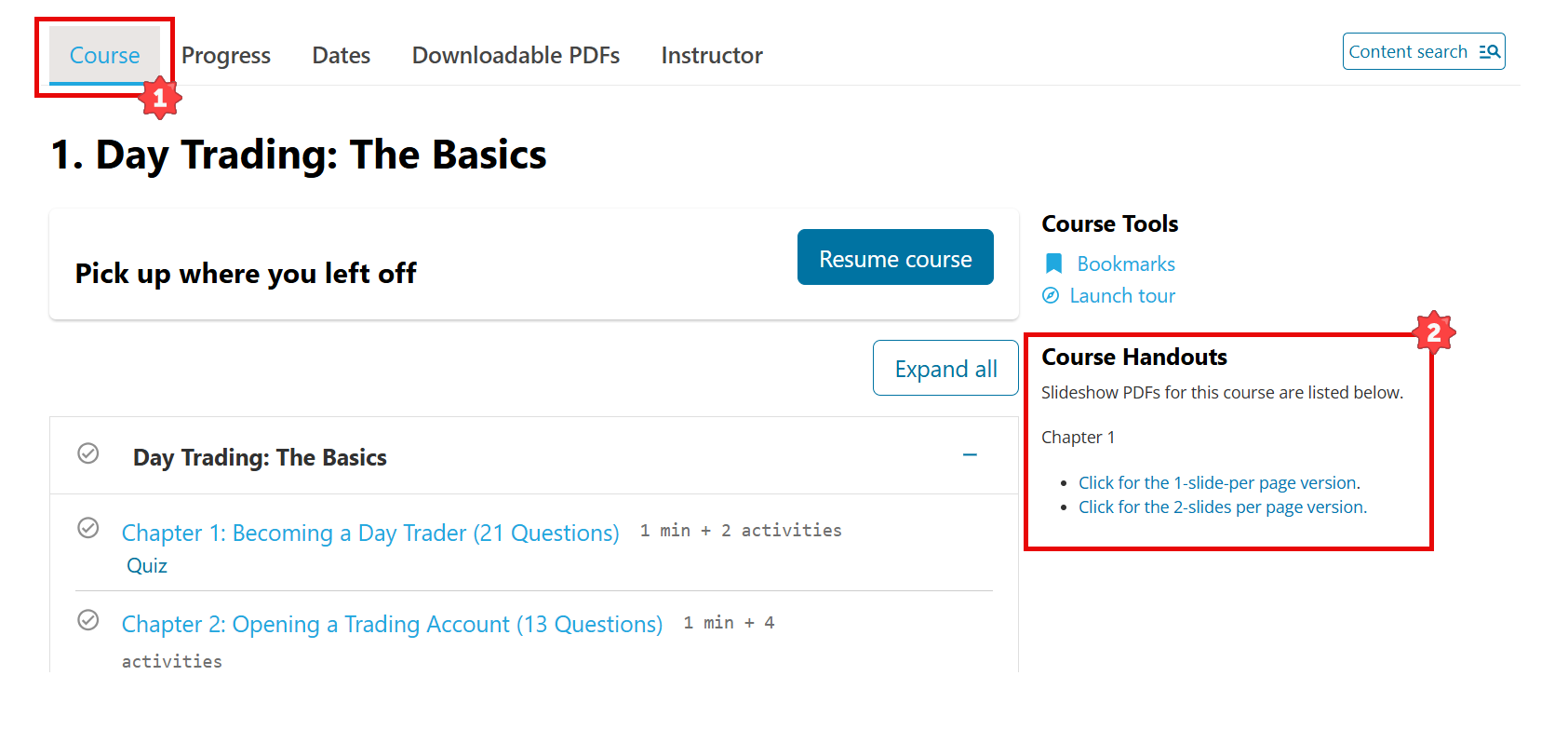
Start by navigating to My Courses, then click the button to Begin/Resume a course. From the next page, click the 'Course' tab located in the top left corner (see screenshot). Course handouts are presented on the right hand side. Click a link to download the course slides.
Quiz PDFs
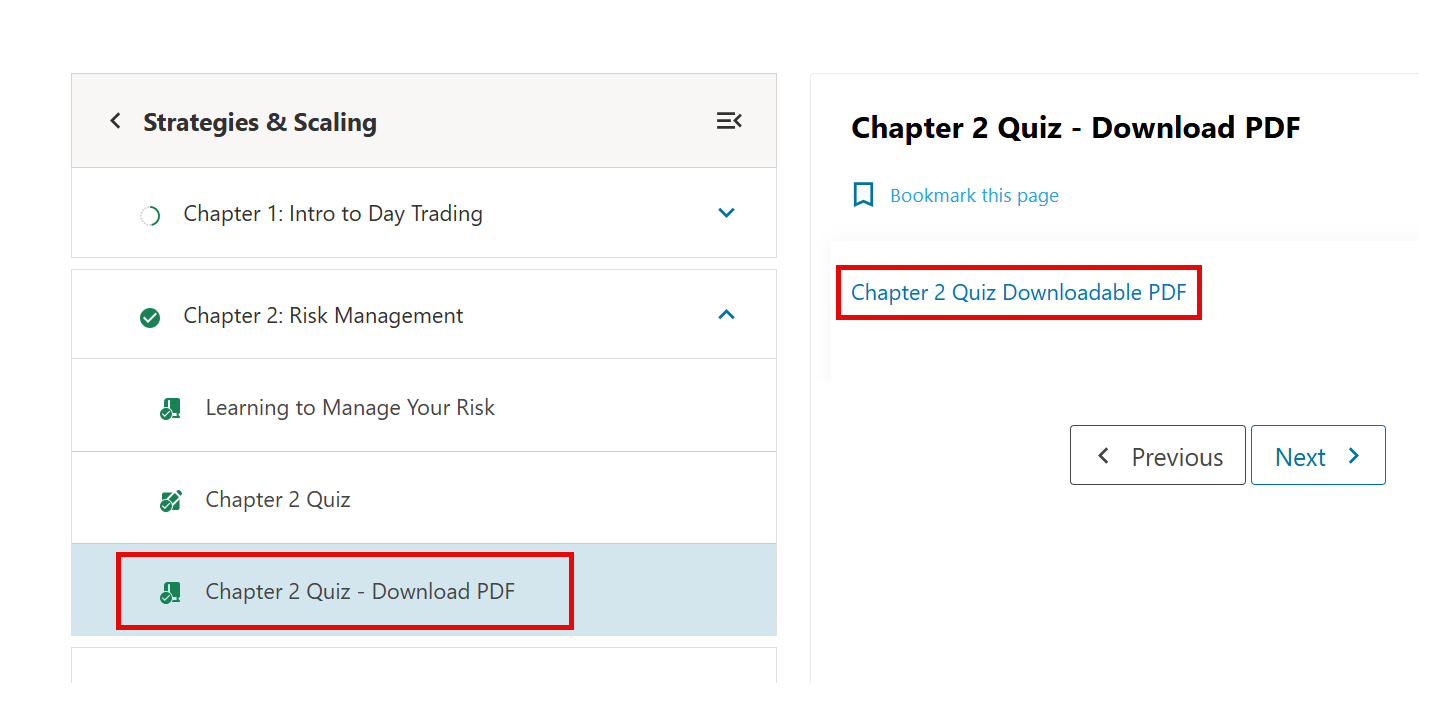
Quiz questions and answers are also available for download as PDFs. The quiz downloads can be found after each individual quiz within the chapter.
Troubleshooting
Can't Start or Resume Course
If you are unable to click the Begin Course or Resume button on your My Courses page, please click the title of the course rather than the blue button to access.