Managing Profile Settings for the Simulator
The following support article will review all the profile settings, definitions and functions so you can easily personalize your simulator experience.
TABLE OF CONTENTS
- Managing Profile Settings for the Simulator
- Locating Profile Settings
- General and Notification Settings
- Account Value and Reset Trade History
- Level 2 Settings
- Edit or Create Hotkeys
- Trade Activity Widget
- Open Positions Widget
- Export Trade History and Import to Tradervue
- Account and Risk Settings
Locating Profile Settings
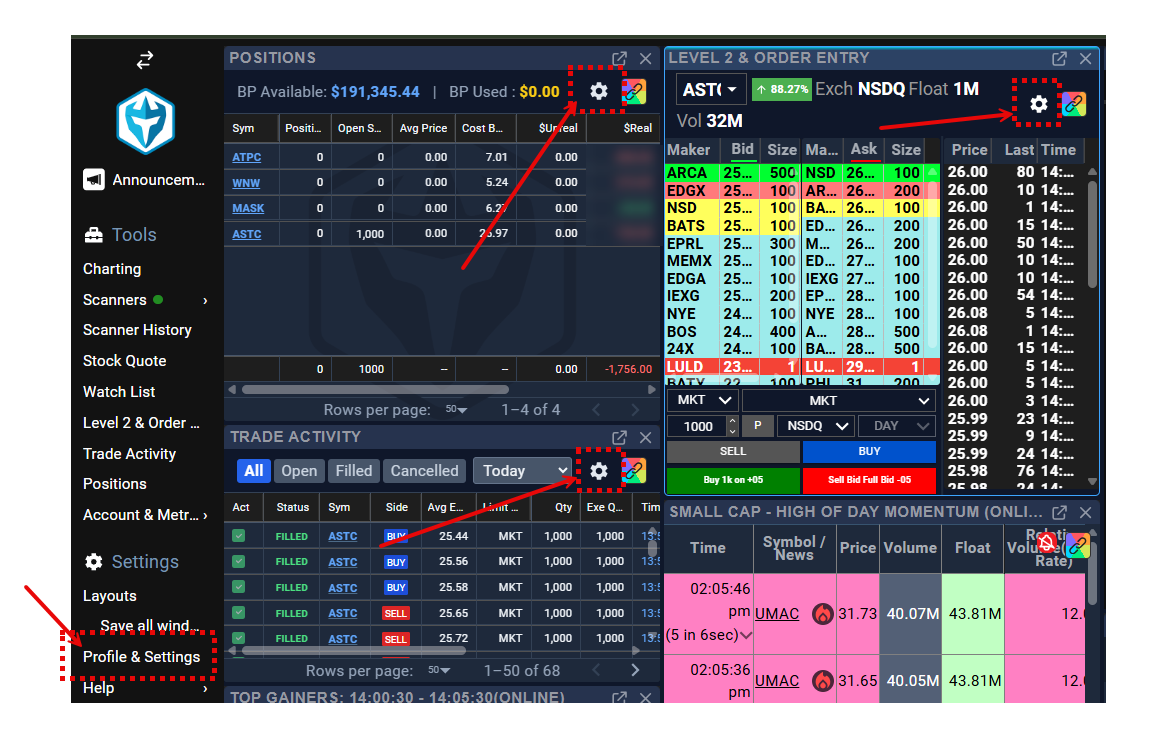
Look for and click the Gear icon from any of the locations highlighted below: 
Click 'Profile & Settings' from the Left Hand Navigation Bar.
General and Notification Settings
This tab allows you to control settings for notifications, scanners, and chart data.
Notification Types, Persistence, Volume, and Position
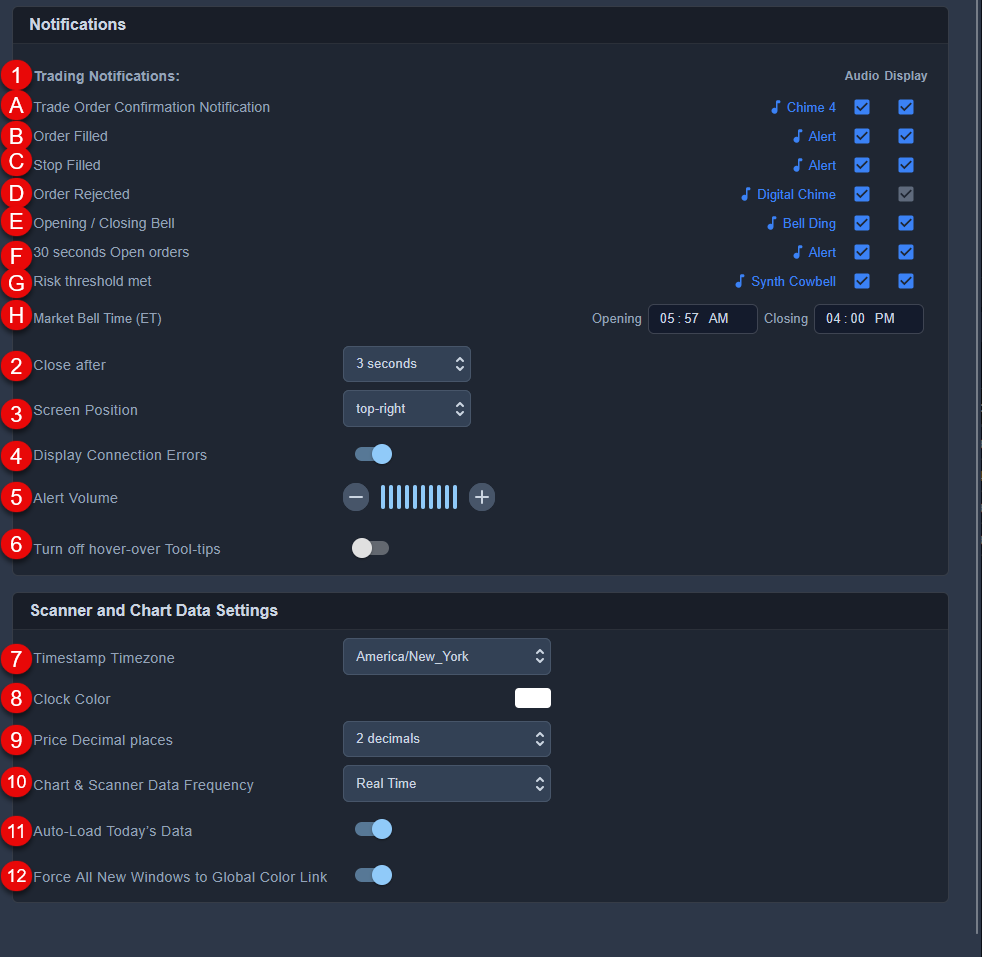
- Trade Notifications settings: Click the sound icon to change the alert sound, or check the boxes under "Audio" and/or "Display" to turn on/off audio and visual displays for the display settings below:
- A) Trade Order Confirmation Notification: Receive confirmation notifications before any trades execute
- B) Order Filled: Sends selected notification anytime a order is filled
- C) Stop Filled: Sends selected notification anytime a stop order is filled
- Order Rejected: Alerts when you have an order that cannot to be sent due to any incorrect order, position, or account value reason
- E) Opening/Closing Bell: Sounds when the market opens and closes
- F) 30 seconds Open Orders: Notifies of any open order with no fill after 30 seconds
- G) Risk threshold met: Notifies when your risk paramaters are met
- H) Market Bell Time (ET): Adjust the timing of your opening/closing bell alerts, using Eastern Standard time zone. Some users might prefer an alert slightly before the market close/open.
- Close after: Determines how long notifications will remain on-screen before closing (from 2 to 5 seconds)
- Screen Position: Determine the location on the screen where notifications will show
- Display Connection Errors: Turn on/off notifications related to Display Connections
- Alert Volume: Turn up/down the volume for scanner and notification alerts
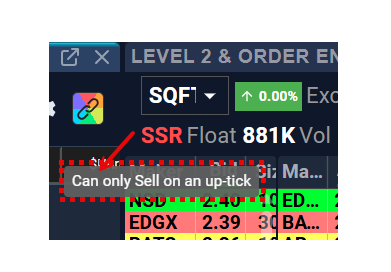
- Turn off hover-over tool-tips: Allows users to determine if hover-over text should be turned off. See below screenshot for an example of a hover-over tool tip.
Scanner and Chart Data Timestamp, Decimals, and Frequency Settings
7. Timestamp and Timezone: Scanner and chart timestamps can be updated to Local or America/New York
8. Clock color: Set the color for the Clock Widget
9. Price Decimal places: Chart (not scanners) can display from 2 to 6 decimals
10. Chart & Scanner Data Frequency: When experiencing latency issues, change to half-second or 1-second updates.
11. Auto-Load Today's Data: Loads all data for a scanner/chart. This may impact system performance to retrieve data.
12. Force All New Windows to Global Color Link: Conveniently loads all windows with the universal color link.
Account Value and Reset Trade History
Update your account value to match the account size you plan to go live with and reset your trade history to start fresh with a new mindset or strategy.
Important Reminder:
⚠️ Buying Power does not automatically reset overnight. Similar to a Live Account, your sim buying power will be reflective of your cumulative profit/loss (since inception or the most recent reset).
Updating your Account Value / Buying Power
- Make sure you have closed out of all open positions and open orders.
- Enter the amount of Cash you want in the account.
- Enter the amount of Leverage (1x to 6x).
- Click 'Adjust Buying Power'.
- Log out, then log back in to make sure the new account value is implemented.
Reset Trade History and Metrics
- Click the button 'Delete Trade History and Metrics'
- Note this resets your buying power to your selection and permanently deletes all your Trade History and Metrics. Do NOT use this function if you are not ready to delete all your trade history. Learn how to export your trade history below.
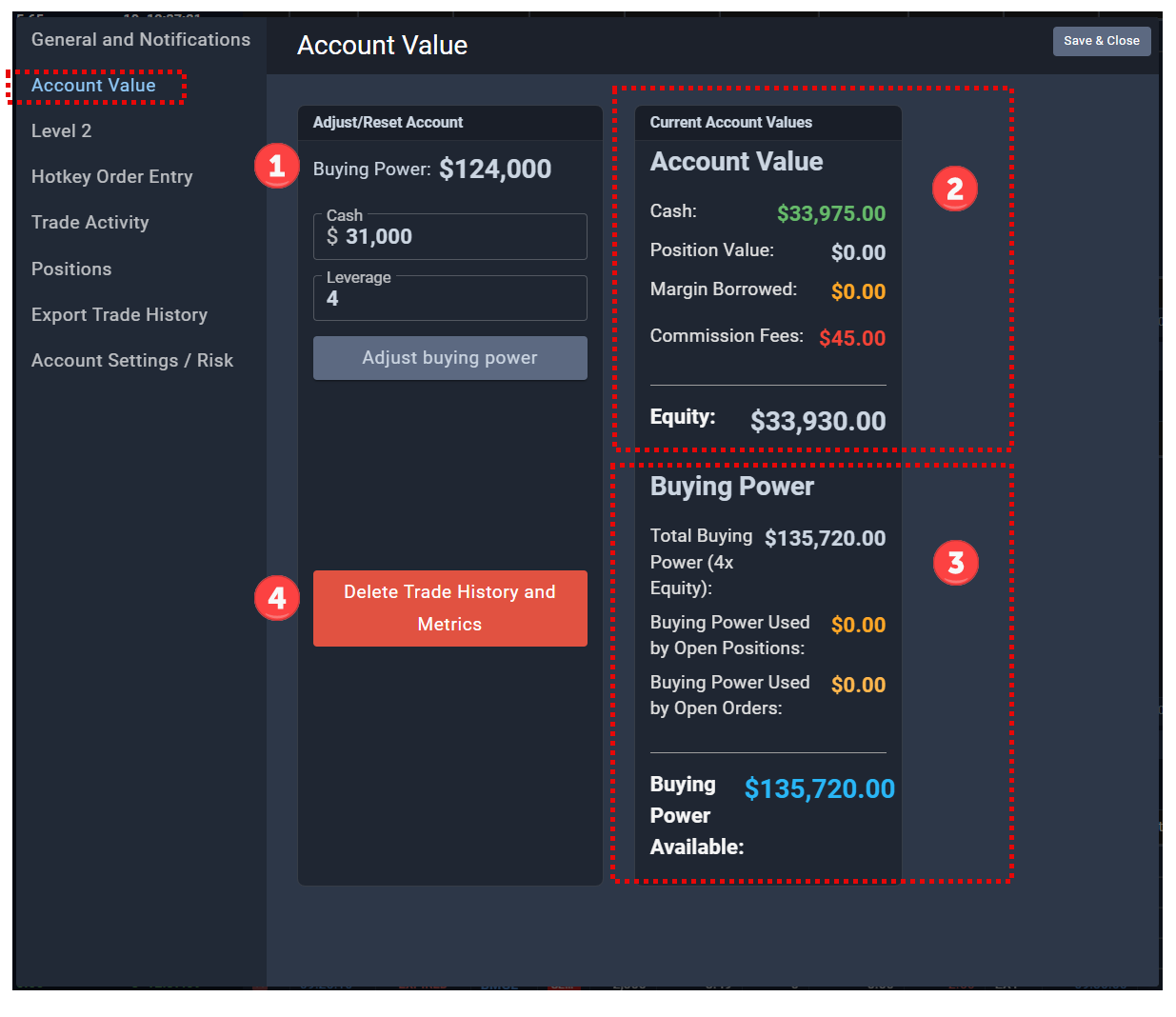
- Buying Power Update - Customize your account equity (e.g., Cash used to fund the account) and Leverage to match your anticipated live account funding.
- Add a Cash amount.
- Add Leverage (1x to 6x)
- Click 'Adjust buying power'
- Account Value / Equity
- Cash Available: Amount used to fund the account adjusted for Profit/Loss on all closed orders to date (cumulative).
- Position Value: Amount or value of any open positions.
- Margin Borrowed: Displays the margin amount on open positions.
- Equity: Sum total of Cash, Position, Margin, and Commissions (if applicable). Note Commission Fees are cumulative of all filled orders to date.
- Buying Power Available
- Total Buying Power: Cash/Equity plus total available Margin.
- Buying Power Used by Open Positions
- Buying Power Used by Open Orders
- Buying Power Available: Sum total of Total Buying Power, Buying Power Used by Open Positions, Buying Power Used by Open Orders
- Delete Trade History and Metrics - Button allows you to reset your trade history and metrics.
Level 2 Settings
Please see this support article for details on the Level 2 Settings.
Edit or Create Hotkeys
Please see this support article for details on Hotkeys.
Trade Activity Widget
Please see this support article for details on the Trade Activity Widget.
Open Positions Widget
Please see this support article for details on Open Positions Widget.
Export Trade History and Import to Tradervue
Export Settings
Export up to six months worth of trade history to help you review and analyze your trades.
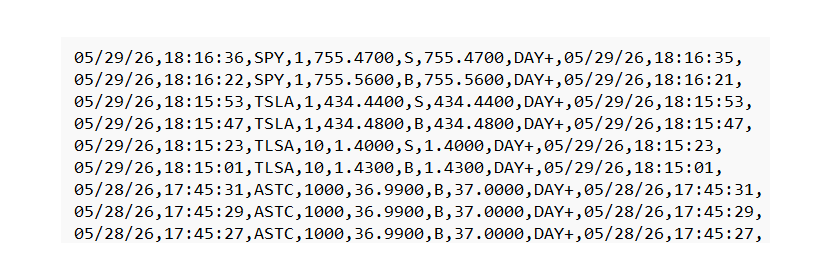
Download is a CSV (Comma Separated Value) file that will look something like the below screenshot and import it into your favorite trade journal application or spreadsheet.
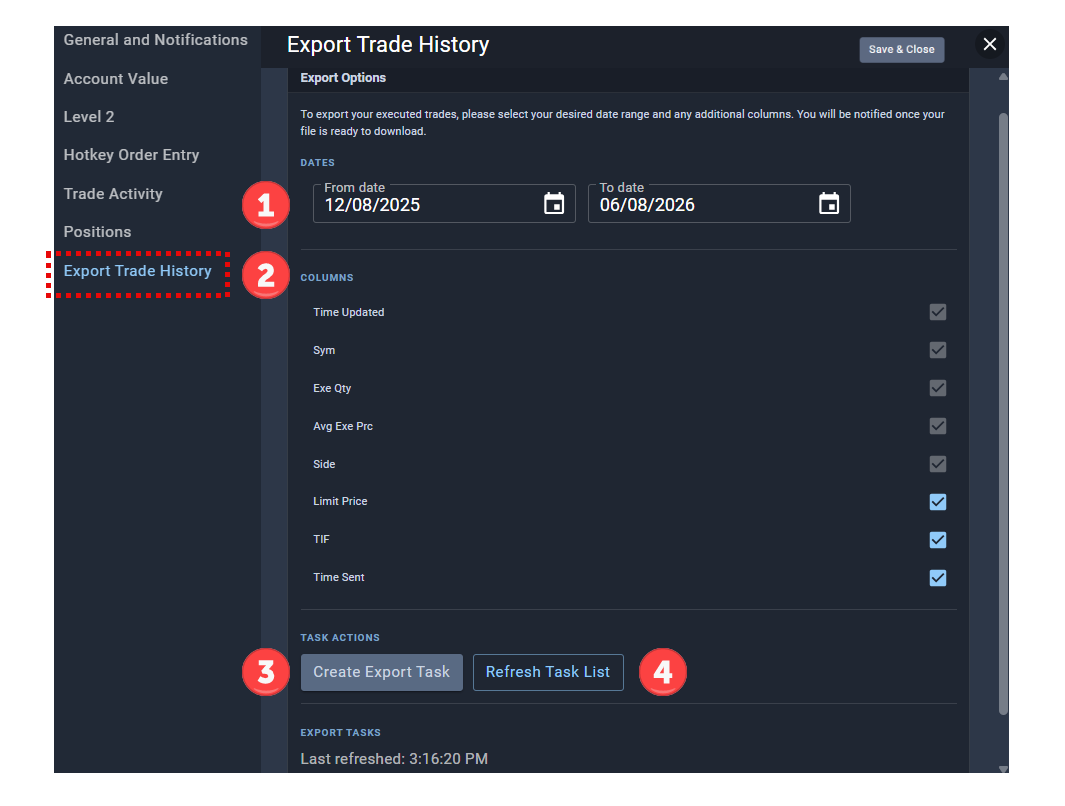
- Dates - Enter dates to export up to 6 months of data.
- Columns
- Time Updated (Required) - Timestamp when the order was filled.
- Sym (Required) = Symbol / Ticker
- Exe Qty (Required) = Executed Quantity - Amount of shares actually filled
- Avg Exe Prc (Required) = Average Execution Price - The average price actually filled at; this can be different from the Limit Order price if the ticker is squeezing up or dropping rapidly
- Side (Required) - Buy or Sell
- Limit Price (Optional) - The limit price sent by you for your order
- TIF (Optional)= Time In Force or how long an order remains open before it expires
- DAY - Order will remain open for the trading day (9:30am to 4:00pm ET)
- GTC - Good Till Cancelled orders remain open until they are cancelled by the trader. Orders will execute during any timeframe (premarket, regular, aftermarket) and do not expire for 30 days, if left open.
- EXT - Extended Sessions orders only execute during premarket and aftermarket, but not during the regular market hours (9:30am to 4:00pm ET).
- DAY+ - Orders execute during any timeframe (premarket, regular, aftermarket), but cancel after 8pm.
- Time Sent (Optional) - Timestamp when the order was sent to be filled.
- Create Export Task - Initiates the data download based on the criteria.
- Refresh Task List - Refreshes the timestamp to pull the most recent data.
Step by Step Instructions to Export Trade History
- Enter the date range for the export - up to 6 months of data.
- Review the data columns for your export file; add optional columns you want.
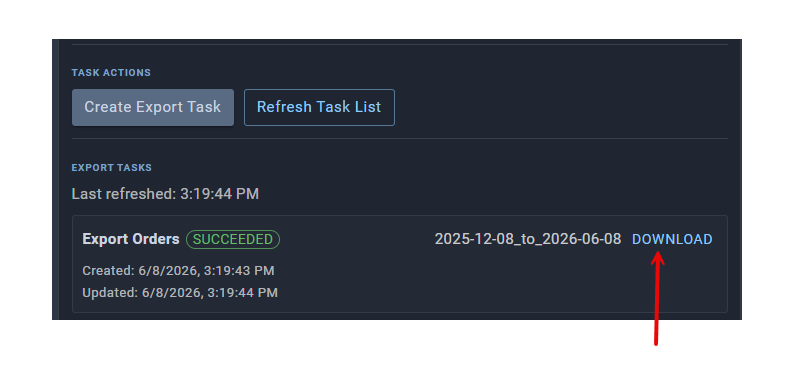
- Create an Export Task by clicking the 'Export Task' button. Click 'Refresh Task List' if you have additional trades you wish to include in the export, then click 'Export Task'.
- Click Download, then look in your Download File Folder.
Import Trade History To Tradervue
To import data from the Warrior Trading Simulator to Tradervue, please follow these steps:
- Download a CSV file from our Export function in the Simulator only with the first 5 columns and do not add any optional columns like fee's
- Log into Tradervue if you have an account, Then o2n the left side of the upload page in Tradervue, select the date format your data uses (e.g. month-first).
- In Tradervue, on the import page, click Choose file, click the name of the file that you created above, and click Upload.
If you have issues with Tradervue outside of the use of our simulator, please contact Tradervue support directly or follow their support procedures.
Account and Risk Settings
Commission
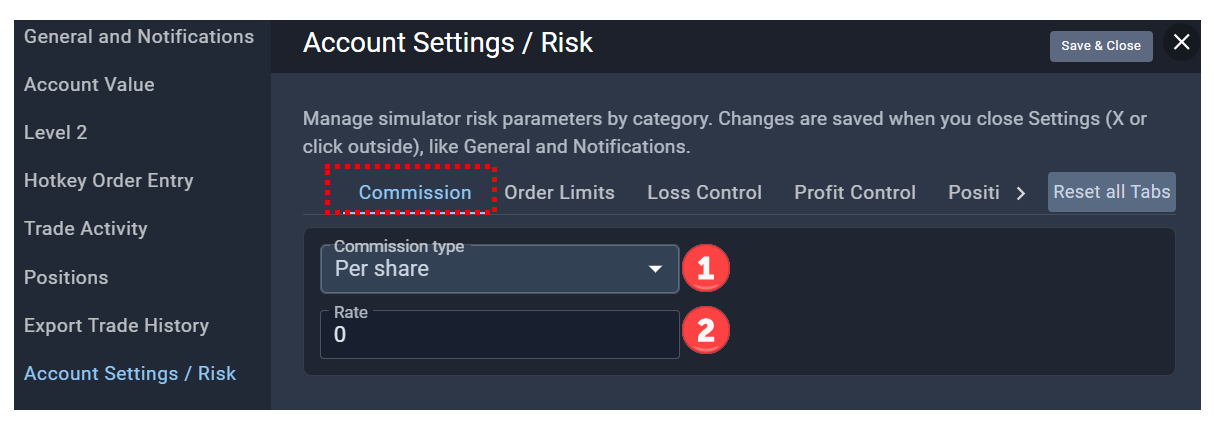
Set Commission Fees to mirror broker settings and prepare for going live.
- Commission Type Per Share or Per Order
- Commission Rate ($) based on Commission Type
Order Limits
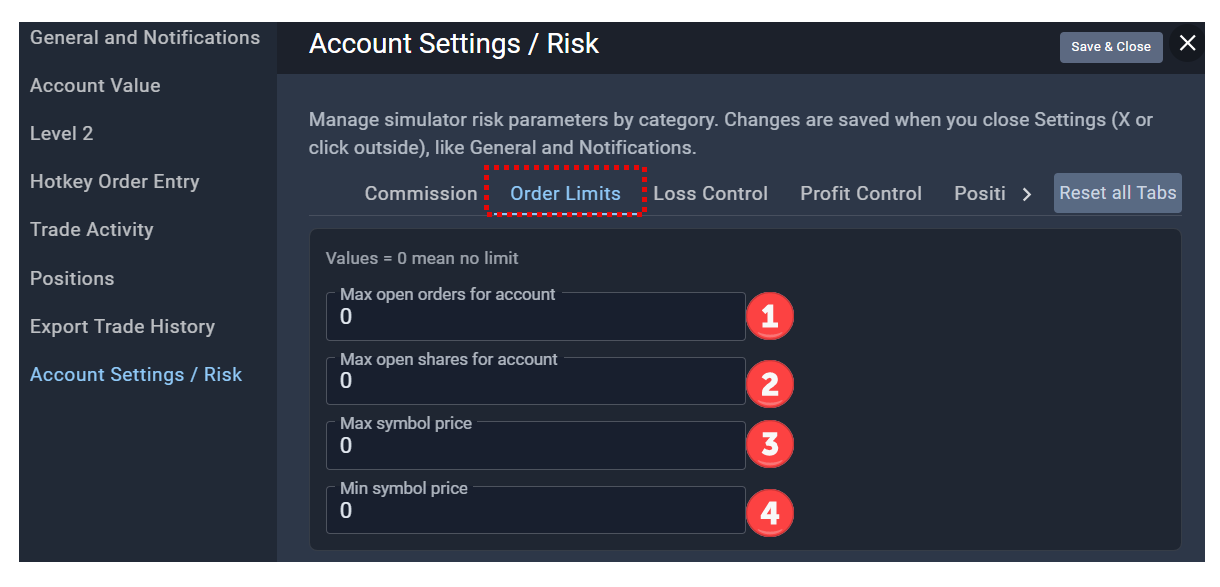
Set Order Limits to reduce trading risk.
- Max open orders for account (#)
- Max open shares for account (#)
- Max symbol price ($)
- Min symbol price ($)
Loss Control
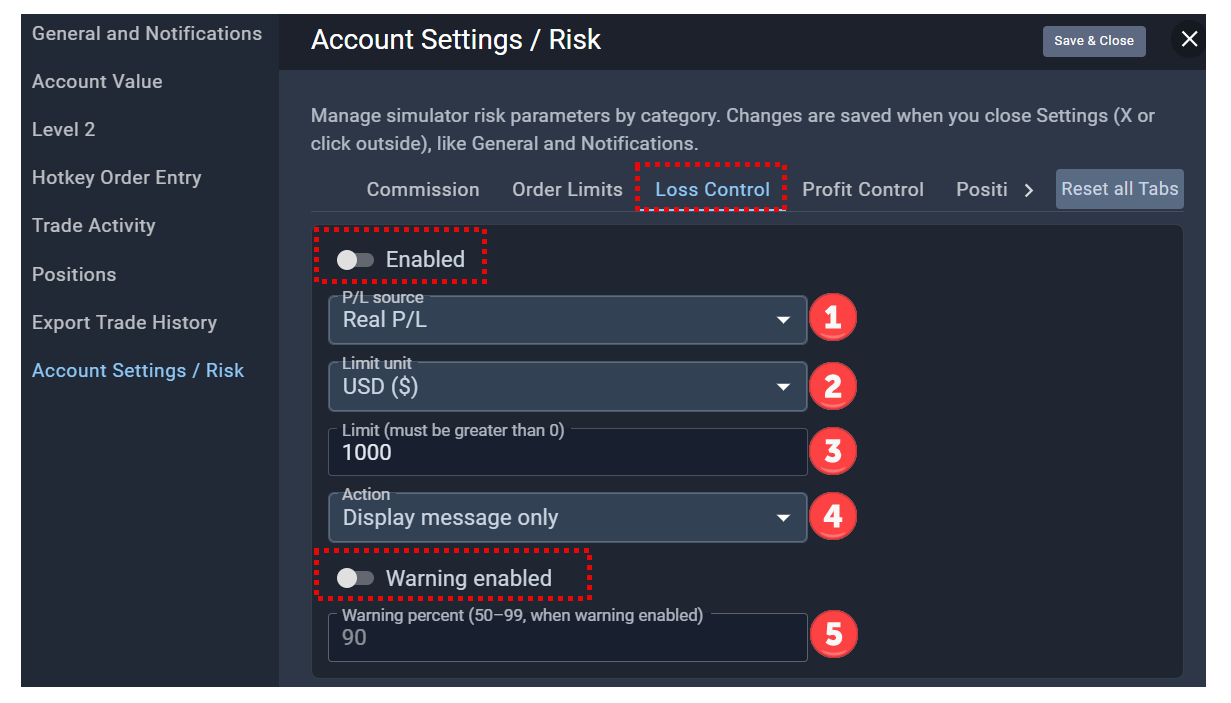
Enable/Disable controls to limit losses.
- P/L Source - Realized, Unrealized, or Realized + Unrealized
- Limit Unit - $ or Number
- Limit - Amount must be greater than zero.
- Action - What happens when you hit a limit?
- Display message only
- Allow close and cancel only - Can only close or cancel
- Auto Liquidate - Closes all open orders
- Warning Percent - Set a preemptive warning when you reach a designated percentage of the Limit
Profit Control
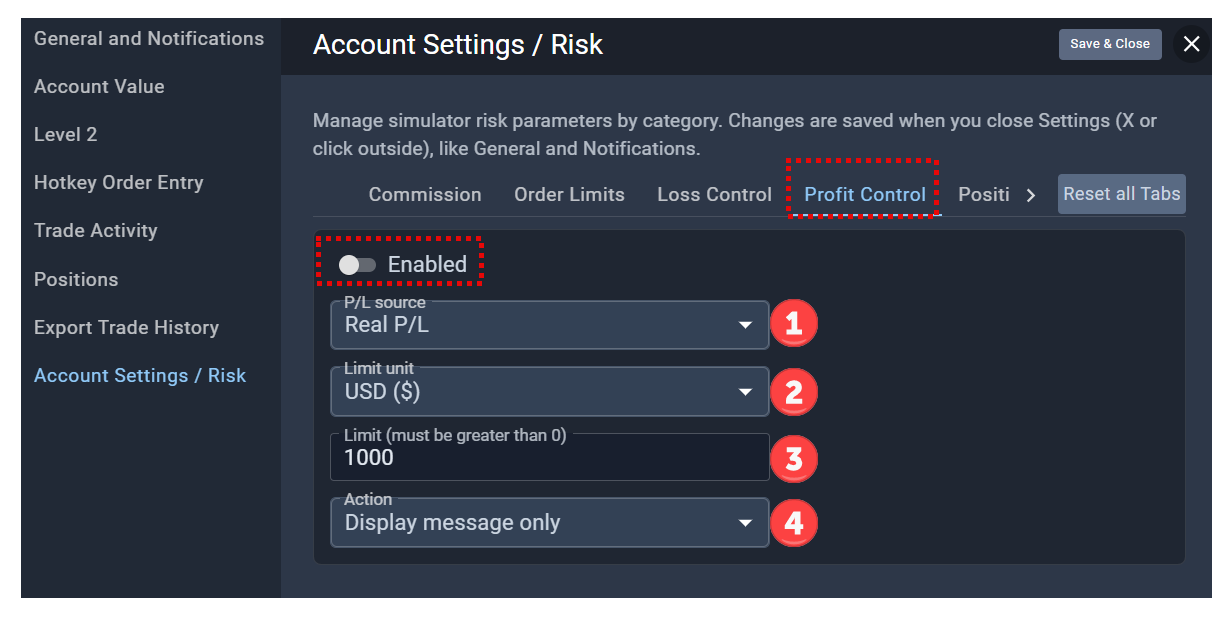
Set controls to protect realized/unrealized profit.
- P/L Source - Realized, Unrealized, or Realized + Unrealized
- Limit Unit - $ or Number
- Limit - Amount must be greater than zero.
- Action - What happens when you hit a limit?
- Display message only
- Allow close and cancel only - can only close or cancel
- Auto Liquidate - Closes all open orders
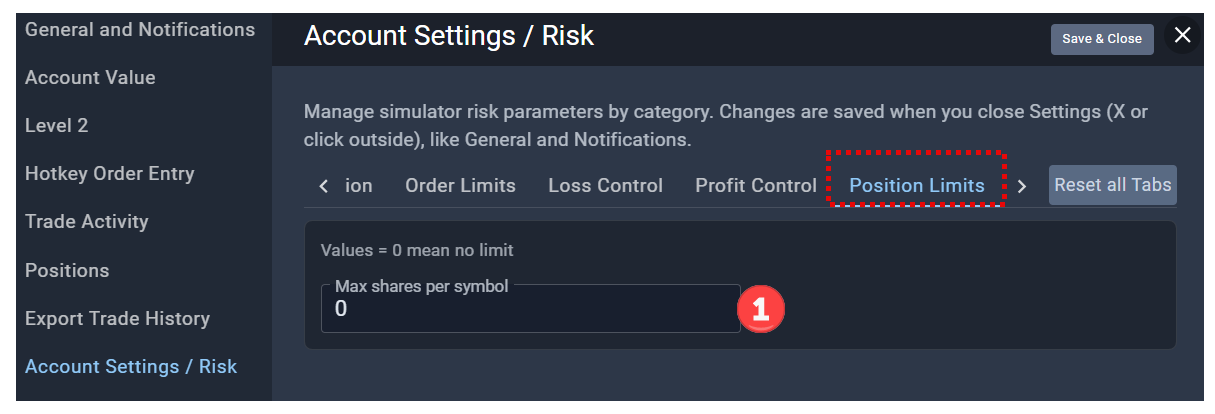
Position Limits
Establishes the maximum number of shares per ticker/symbol.
Short Order Control
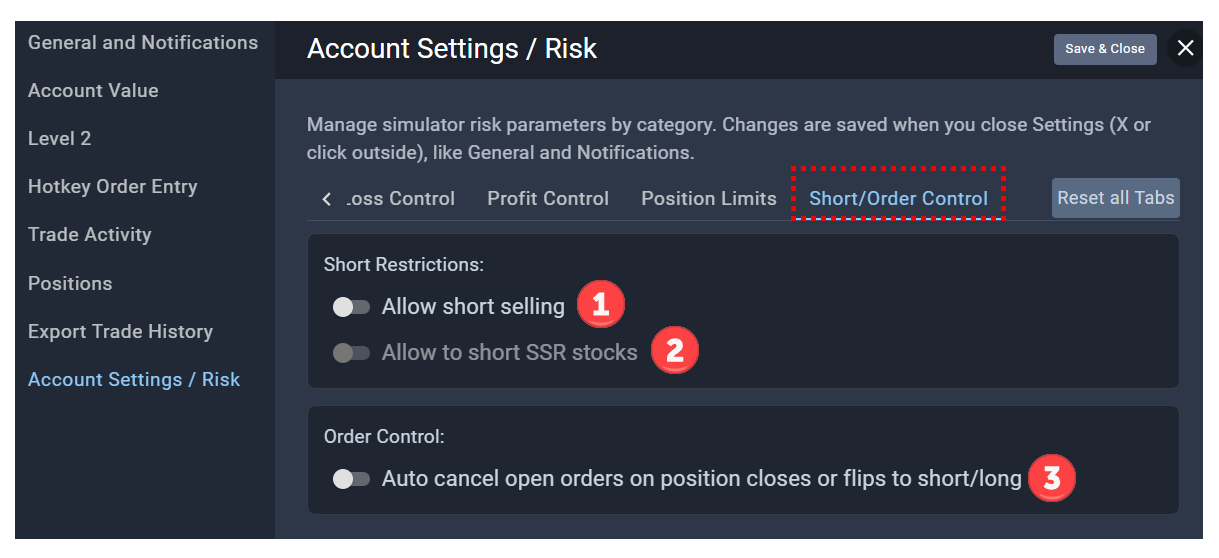
Update your settings to turn on/off short selling.
- Toggle On/Off Short Selling
- Toggle On/Off ability to allow shorting SSR stocks. See: "Short Sale Restriction (SSR) Stocks Meaning"
- Toggle On/Off ability to auto cancel open orders on position closes or flips to short/long. Prevents traders from entering into short positions when long and vice versa for short traders looking to avoid going long.