Tracking Trade Activity and Open Positions
The Trade Activity and Open Position widgets help traders understand the details behind all their trade activity. A quick glance at the Trade Activity widget can help a trader see the status of all their orders. The Open Position widget displays any open positions as well as the profit/loss (P/L).
Traders may open more than one Trade Activity widget for different views. For example, a trader may open two Trade Activity widgets - one set to Open orders and the other focused on Filled orders.
Note only one Positions widget can be opened in your layout.
TABLE OF CONTENTS
Trade Activity Widget
The Trade Activity widget allows traders to view Order History from Today, the last 7 Days, or the last 6 Months. This can be very helpful when reviewing trades or even for personal journaling when you want to see the details for a particular trading day. All Open, Filled, Cancelled, and Rejected Orders are displayed.
You can open multiple Trade Activity widgets and focus each one on a different Order Status (e.g., one set to Open orders and the other focused on Filled orders).
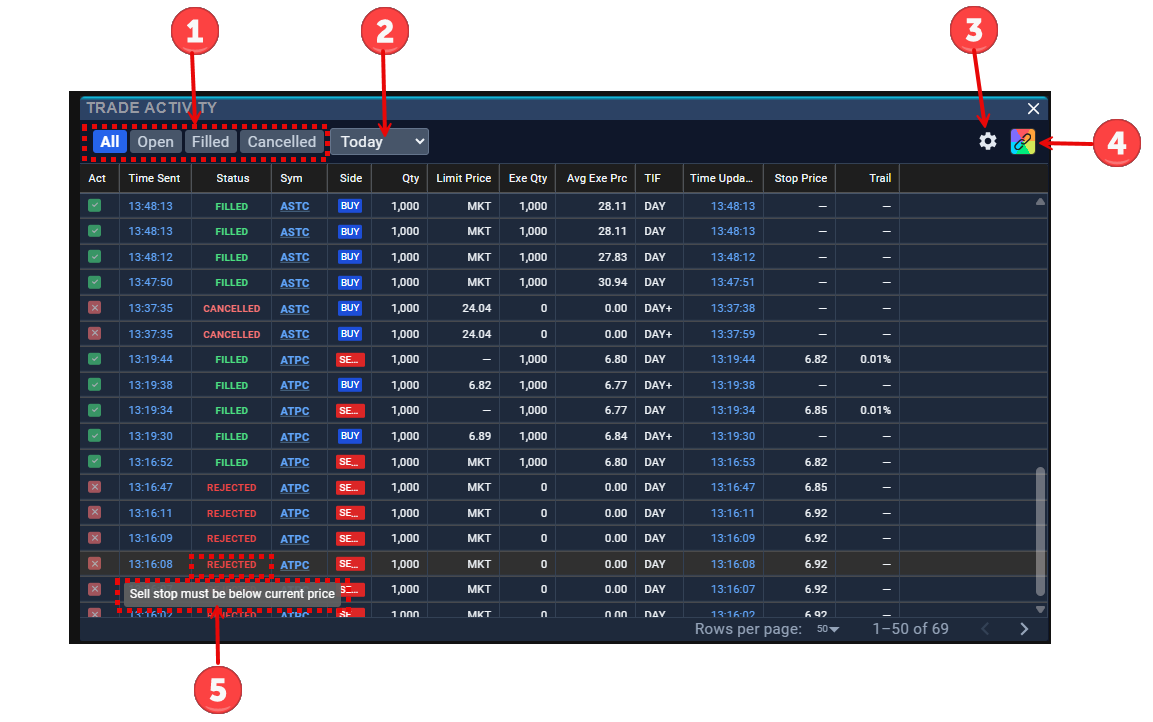
Trade Activity Widget Components
- Order Status
- All
- Open
- Filled
- Cancelled
- Timeframe
- Today
- Last 7 Days
- Last 6 Months
- Settings - View Trade Activity Settings (e.g., columns to display)
- Color Link - See: Color Linking Widgets
- Messages - Hover over Rejected Status to view the reason why an order was rejected.
Trade Activity Settings - Column Display
Click the Settings 'Gear Icon' to access the Column Settings. 
Determine which columns you wish to display for each Order Status: All, Open, Filled, and Cancelled.
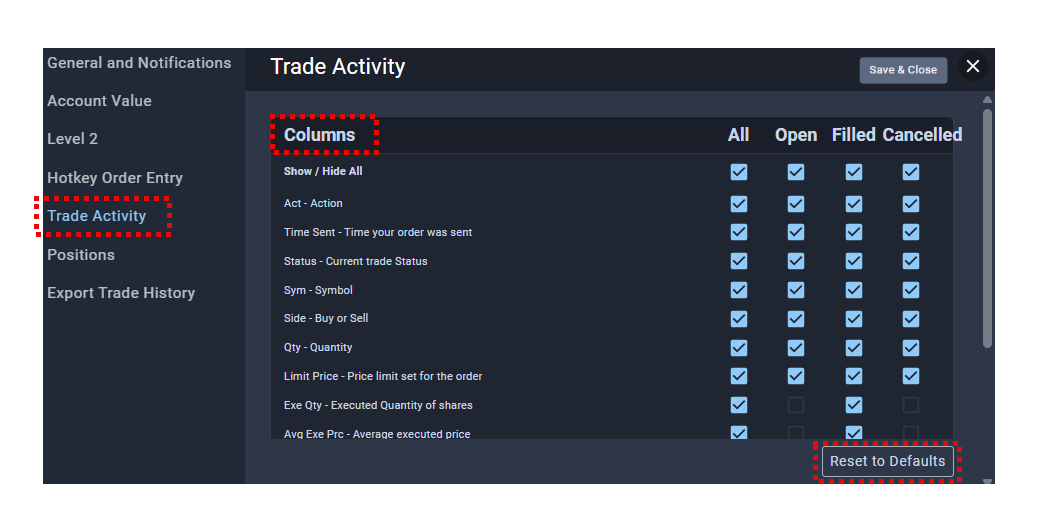
Trade Activity Widget - Column Definitions
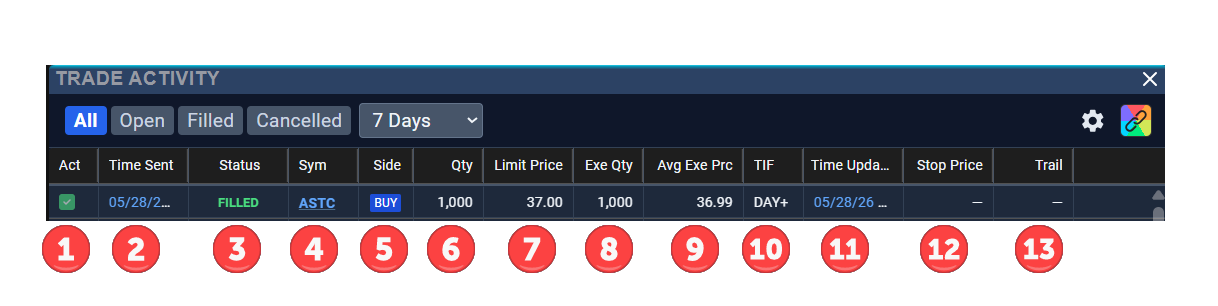
- Act = Action - At-a-glance view of the order status.
- Green - Successfully Filled
- Red - Cancelled/Rejected
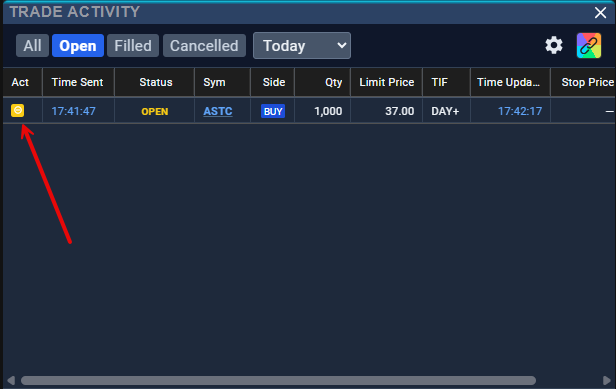
- Yellow - Open (can click on it to cancel the order)
- Time Sent - Time your order was sent
- Status - Filled, Open, Rejected (hover over Rejected to see the related message), Cancelled
- Sym = Symbol - Stock Ticker
- Side - Buy or Sell
- Qty - Quantity of shares purchased
- Limit Price - The limit price sent by you for your order
- Exe Qty = Executed Quantity - Amount of shares actually filled
- Avg Exe Prc = Average Execution Price - The average price actually filled at; this can be different from the Limit Order price if the ticker is squeezing up or dropping rapidly
- TIF = Time In Force or how long an order remains open before it expires
- DAY - Order will remain open for the trading day (9:30am to 4:00pm ET)
- GTC - Good Till Cancelled orders remain open until they are cancelled by the trader. Orders will execute during any timeframe (premarket, regular, aftermarket) and do not expire for 30 days, if left open.
- EXT - Extended Sessions orders only execute during premarket and aftermarket, but not during the regular market hours (9:30am to 4:00pm ET).
- DAY+ - Orders execute during any timeframe (premarket, regular, aftermarket), but cancel after 8pm.
- Time Updated - For Limit or Stop Orders that do not fill immediately; view the exact time the order was filled/cancelled/rejected.
- Stop Price - For Stop Orders, once the current price reaches the Stop Price, a Market Order is executed. Stop Orders do not trigger premarket.
- Trail - Used for Trailing Stop Loss orders. It is the incremental amount or percentage that dictates how far below the stop order follows a wining trade. For more information, see Trailing Stop Orders.
Cancel Order
The yellow icon displayed below indicates an Open Order. To cancel the order, click the yellow icon.
Positions Widget
The Positions Widget is used by traders to view all open positions. It also displays helpful information like the Buying Power (BP) Available to trade and BP Used today. At the bottom, traders will find the total amounts for relevant columns.
Columns can be reordered by clicking and dragging or going to the Settings menu hide/unhide them. Always make sure to save your layout before you log out for the day if you have made any changes.
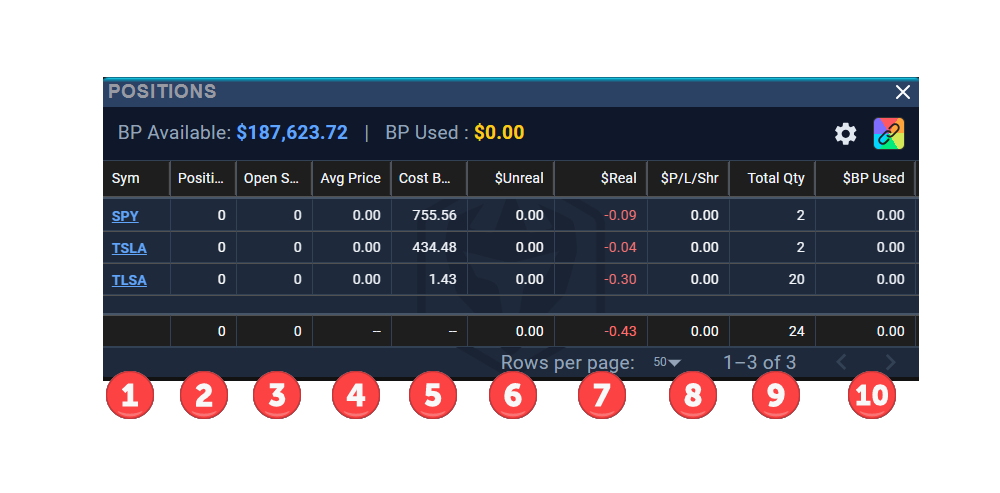
Positions Widget - Column Definitions
- Sym = Symbol - Stock Ticker
- Position - The total share size of all current open positions for a particular ticker. A (red) position indicates this is a Short Position. To close a short position, an equal number of shares must be purchased to cover.
- Open Shares - Shares awaiting to be filled from an Open Order.
- Avg Price - The price paid for the most recent order to enter the stock on an average basis.
- Cost Basis - Similar to Average Price, but the calculation continues throughout the daily trading session and updates each time a new order for the same ticker is placed.
- $Unreal = Unrealized Profit - Displays unrealized profit or loss when in a trade; changes to zero when you close your position.
- $Real = Realized Profit - Displays the actual realized profit or loss once the position is closed.
- P/L/Shr = Profit/Loss/Share - Displays the Profit or Loss per Share.
- Total Qty = Total Quantity of shares traded on a particular ticker today.
- $BP Used - Buying Power used for the current open position.
Tip: Sorting Rows and Column Features
- Hover over columns display a mini-menu to hide, edit or sort columns.