TABLE OF CONTENTS
- Ross's Simulator Overview
- About the Simulator Offered by Warrior Trading
- What are the system requirements for the WT Simulator?
- Do I have sim access?
- How do I activate my simulator trial? (Pro bundle offers)
- General Simulator Walkthrough
- Sim Hours
- How do I access the Warrior Trading Simulator?
- Signing Market Data Agreements
- Making your first trade using the Level 2 & Order Entry Window
- Resources to help you master trading in the WT Simulator
Ross's Simulator Overview
Ross recorded this basic overview of the WT Simulator during one of his daily Live Streams. It has been condensed a bit to focus on the items covered in this support article. Hover over the replay bar to view chapters so you can skip ahead or replay specific sections.
About the Simulator Offered by Warrior Trading
The WT Sim is a browser-based paper trading simulator leveraging live market data. If you are familiar with other trading platforms, like Sterling, DAS, or Lightspeed Trader Pro, then you are already familiar with the general layout and user experience.
The Warrior Trading web-based simulator includes live market data and access to charting, stock quotes, and level 2 data. It does not include stock scanners, though many users of the web-based simulator may also be subscribed separately to the scanners through a Day Trade Dash subscription.
- For more information on the simulator's charting features, see our articles here.
- For more information on Day Trade Dash scanners, see our articles here.
The WT Sim offers several key differentiators designed to support day traders:
- Live market data, not delayed
- Integrated linking system that allows traders to click a ticker to automatically update linked charts and Level 2 widgets
- Browser-based sim supports Windows and Mac users
- Reset trading metrics whenever needed
- Create custom Hot Keys
- Execute standard orders -- Limit, Stop, and Market Orders
Sim features that are not available immediately, but will be released in the near future include:
- Trailing Stops
- Once Cancels The Other (OTO) Orders
Common to all paper trading simulators, there are limitations to be aware of. Paper trading does not accurately reflect:
- Real-market slippage
- Availability of shares to borrow
- Emotions experienced with real money
What are the system requirements for the WT Simulator?
Note: The system requirements assume a limited use of other applications running on your computer while trading in the WT Simulator. The more applications you are running simultaneously, the greater the chance that you will experience an increase in latency.
Please see this support article for details about required Browsers, Operating Systems and Computer specifications: System Specifications
Do I have sim access?
Members can confirm their current subscriptions via their Orders & Memberships page. You may also check the "Simulator" section of the Member Renewal & Information page for information regarding current or potential simulator access for your membership level.
Unless otherwise stated (read below if you have a trial), simulator access is activated once you add it to your account, so only purchase it when you are ready to start using it. Please remember that simulator subscriptions cannot be paused, due to the nature of fees charged by the exchanges for live market data. Recurring subscriptions can be cancelled anytime. Click here to learn more about managing a subscription.
How do I activate my simulator trial? (Pro bundle offers)
Some special membership bundle offers include a trial of simulator access. In this case, simulator trials are not activated by default, giving members flexibility with when to activate it. We typically recommend completing at least the first ten chapters of Day Trading: The Basics before activating the simulator. This can be done via the My Orders & Memberships link on the Dashboard:
Then, click the Manage button next to the note about the simulator trial:
 From there, follow the instructions to complete the activation, and please keep in mind that the trial cannot be paused once it is started.

Once the trial is activated, you should be able to see the simulator on your platform. Continue reading below or click here to jump to the section on how to access the platform.
General Simulator Walkthrough
Sim Hours
Our simulator offers live market data and trading during regular stock market hours from 4 am ET to 8 pm ET.
How do I access the Warrior Trading Simulator?
Members access the Warrior Trading Simulator from Day Trade Dash. If you need help accessing Day Trade Dash, see this helpful support article: Signing into Day Trade Dash, Chat Room, Live Stream | WT : Warrior Trading and this video guide: How to Use Warrior Trading's Live Trading Platform (Community and Day Trade Dash) : Warrior Trading
Once you are on Day Trade Dash, followg these instructions to access the simulator:
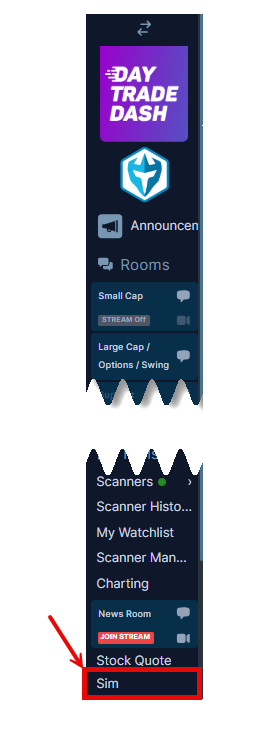
- From the left-hand vertical navigation bar in Day Trade Dash and click, 'Sim' (see below screenshot).
- If you need help accessing Day Trade Dash, see this support article: Signing into Day Trade Dash, Chat Room, Live Stream | WT : Warrior Trading
- If you do not see, 'Sim', you may not have a WT Simulator subscription.
- Review and manage any active subscriptions here: Orders & Memberships.
- Find renewal information, purchase new tools & add-ons, and re-purchase expired tools here: Membership Information, Tool Add-Ons, and Renewals.
Signing Market Data Agreements
The WT Simulator uses live market data to populate the Level 2 and it requires each member to sign the Market Data Agreements. The exchanges (NYSE and NASDAQ) own the data and they will review all market agreements, so make sure you use accurate and complete information to avoid having a disruption in your live market data service.
If you already signed market data agreements for Day Trade Dash, then you do not need to sign them again.
For instructions to sign your market level agreements, follow the steps in this support article: How to Sign Market Data Agreements for Scanners & Charts | WT : Warrior Trading
The simulator uses aggregates the Top of Book Tape to display Level 2 data. It includes all US Equities Level 1 data (and limited ETF data, like SPY):
- NYSE Level 1- Tape A
- Amex Level 1 - Tape B
- Nasdaq Level 1- Tape C
For more information on market-level data, see: What market data should I use for trading? : Warrior Trading
Making your first trade using the Level 2 & Order Entry Window
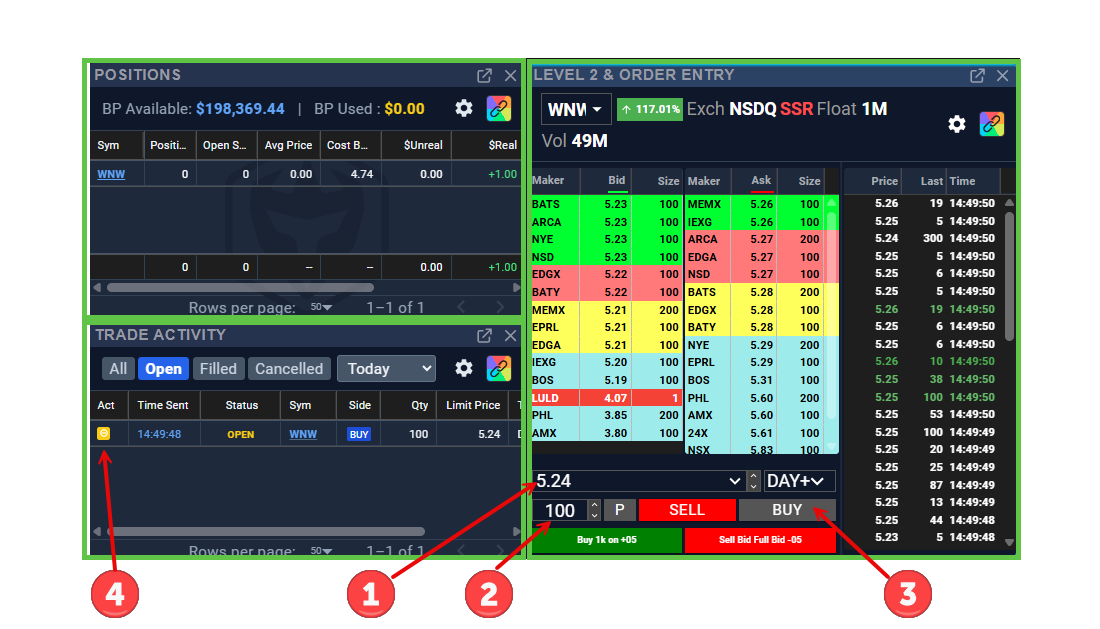
A simple way to make a trade is to use the Order Entry Window. Follow the steps that align with the illustration below:
- Enter the price you want to pay. This is a great exercise for you to learn that the price you want to pay, may not be the price the market will sell you shares.
- Enter the number of shares you want to buy. Try to keep your share size aligned to an amount you plan to use when you are ready to go live. For example, if you plan to go live with an account size of $2,000, then practice in the sim with a share amount that aligns with your account size.
- Click the 'Buy' button.
- Did the order execute right away, or is it an Open Order? Open Orders can be cancelled by clicking the 'Cancel Order' icon in the Trade Activity widget.
To sell, simply repeat steps 1-4 to enter your price, share size, but click the 'Sell' button.
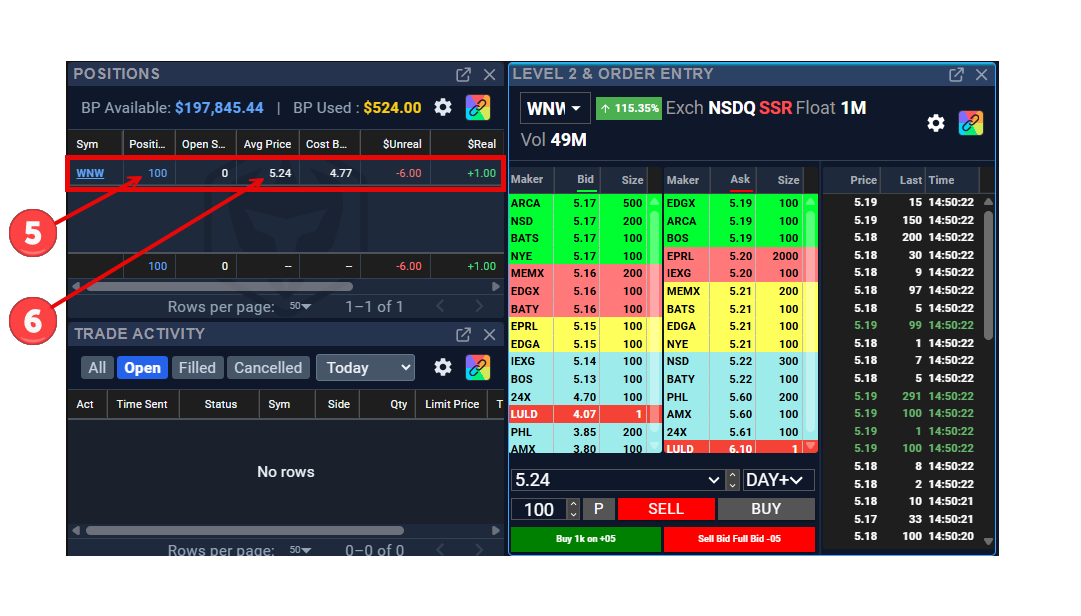
Orders that are executed, create Open Positions. From the illustration below, you will see the Open Position for our example:
- 100 shares of WNW
- Average Fill Price of $5,24
Resources to help you master trading in the WT Simulator
The Education Portal is a great place to build your knowledge and skills in the simulator. From Day Trading: The Basics*, please see the following chapters:
Chapter 6: Trading Platform Walk-Through
Chapter 7: Level 1 Market Depth & Order Entry
Chapter 8: Level 2 Market Depth & Time and Sales
Part 1: Understanding Level 2
Part 2: Time & Sales (AKA The Tape)
Chapter 9: Order Entry Window and Popular Order Types
Chapter 10: Hot Keys & Hot Buttons
Part 1: Hot Keys
Part 2: Hot Buttons
*Note Warrior Pro Preview members have access to Chapter 6, while Starter and Pro members have access to all of Day Trading: The Basics.
You can expect minor differences between the WT Simulator and other platforms, like Sterling, DAS, or Lightspeed, but the vast majority of functions are similar to the point that with a little practice the skills learned on one platform can be transferred to another. Just make sure to scale your share size way down (like one share) if you switch platforms - at least until you are fully comfortable with the new platform.