The purpose of this support article is to help orient traders to the Level 2 & Order Entry components and functions found in the simulator. Each capability and function is explored in detail below.
Keep in mind that while the simulator leverages live market data, it is not directly connected to the market. As a result, traders will not experience price slippage or partial fills, like they might experience trading live.
Simulator orders execute in a very specific manner in an attempt to reflect the market, but as mentioned above, this is not perfect. To review the rules that drive order execution in the simulator along with examples, please click this link and scroll down to the section, "Why did my order not fill at the price I set -- what is the Order Fill Logic?" Simulator (Sim) Order and Error Message Troubleshooting Guide : Warrior Trading
TABLE OF CONTENTS
- Two Quick Ways To Make Your First Trade - Order Entry Widget & Hot Keys
- Level 2 & Order Entry Components
- Warrior Trading - Additional Level 2 Resources and Training
Two Quick Ways To Make Your First Trade - Order Entry Widget & Hot Keys
Level 2 & Order Entry Components
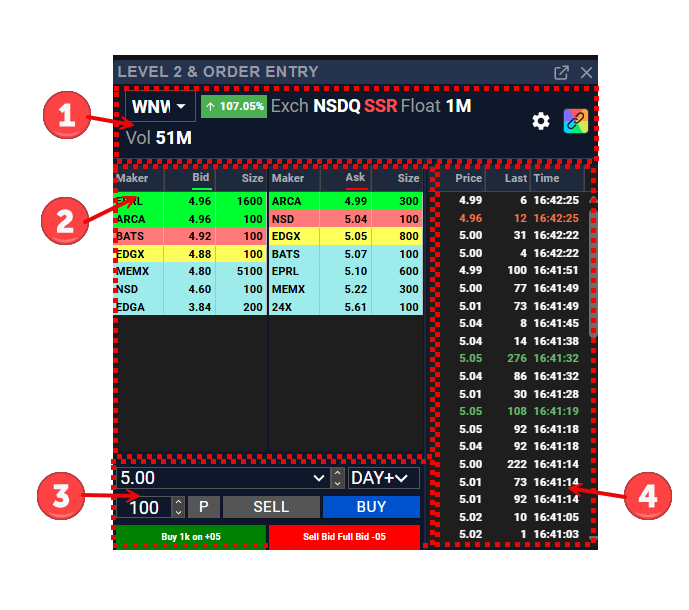
- Ticker Profile - Ticker Symbol, % Gain/Loss, Exchange, Status (e.g., Short Sale Restriction - SSR), Float, Volume, Level 2 Settings, and Color Grouping.
- Level 2 - Bid / Ask Prices, Exchanges, Size (Shares)
- Order Entry - Price (Actual, Limit, Market, Last, Stop), Time In Force (TIF), Share Size, Position, Sell, Buy, and Hot Buttons (e.g., 'Buy 1k on Ask +.05'
- Time & Sales - Print of the most recent orders. Displays: Price, Order, and Timestamp
Ticker Profile Details (Including Exchange, Float, & Hard to Borrow)
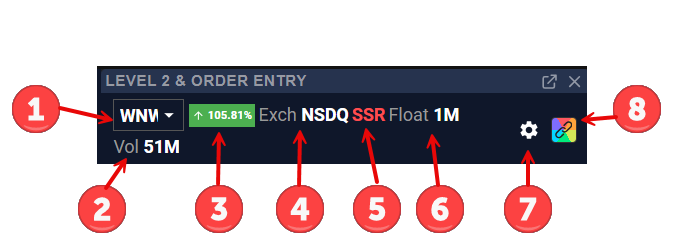
- Ticker Entry - Enter your ticker symbol, or if you have scanners and charts linked by color-group, the ticker symbol will automatically update. You can also click the down arrow to view previous ticker symbols.
- Volume - Daily volume from premarket through the aftermarket timeframes (4am ET to 8pm ET).
- % Gain/Loss - Percentage Gain/Loss from previous market close.
- Exchange - Denotes the exchange the stock is listed on.
- NSDQ (Nasdaq) displays halt levels and resumption prices.
- NYSE displays halt levels, but not resumption prices.
- Status - Displays the trading status for a ticker. Currently, we only display 'SSR' Short Sale Restriction in the Status. We plan to display HTB and ETB (see definitions below for HTB/ETB) in a future release.
- SSR - Short Sale Restriction; see "Short Sale Restriction (SSR) Stocks Meaning"
- Hard To Borrow (HTB) / Easy To Borrow (ETB); see Hard To Borrow List Definition: Day Trading Terminology
Hard to Borrow (HTB) refers to a designation used by brokers to indicate that a particular stock is difficult to locate and borrow for short selling. This is typically due to low availability or high demand among short sellers and does vary by broker.
When you short a stock, you're borrowing shares (from your broker) to sell them, hoping to buy them back cheaper. But not all stocks are easily available to borrow.
- If a stock is HTB, your broker may not have enough shares available to lend you.
- These stocks often require special approval or manual request to short.
- There may also be higher fees or interest rates (called borrow fees or hard-to-borrow rates) just for holding the position overnight.
In the simulator, if you try to SHORT a stock that is HTB, you will see the Hard To Borrow rejection message. You can bypass this by using the SELL button, but it is a good idea to understand the process for shorting stocks and avoid bypassing restrictions, especially if this is part of your trading strategy.
6. Float - Number of shares available to trade; see Stock Float Definition: Day Trading Terminology - Warrior Trading
7. Level 2 Settings - Covered in detail below.
8. Color Grouping - Covered in detail below.
Level 2 Settings - A Deep Dive
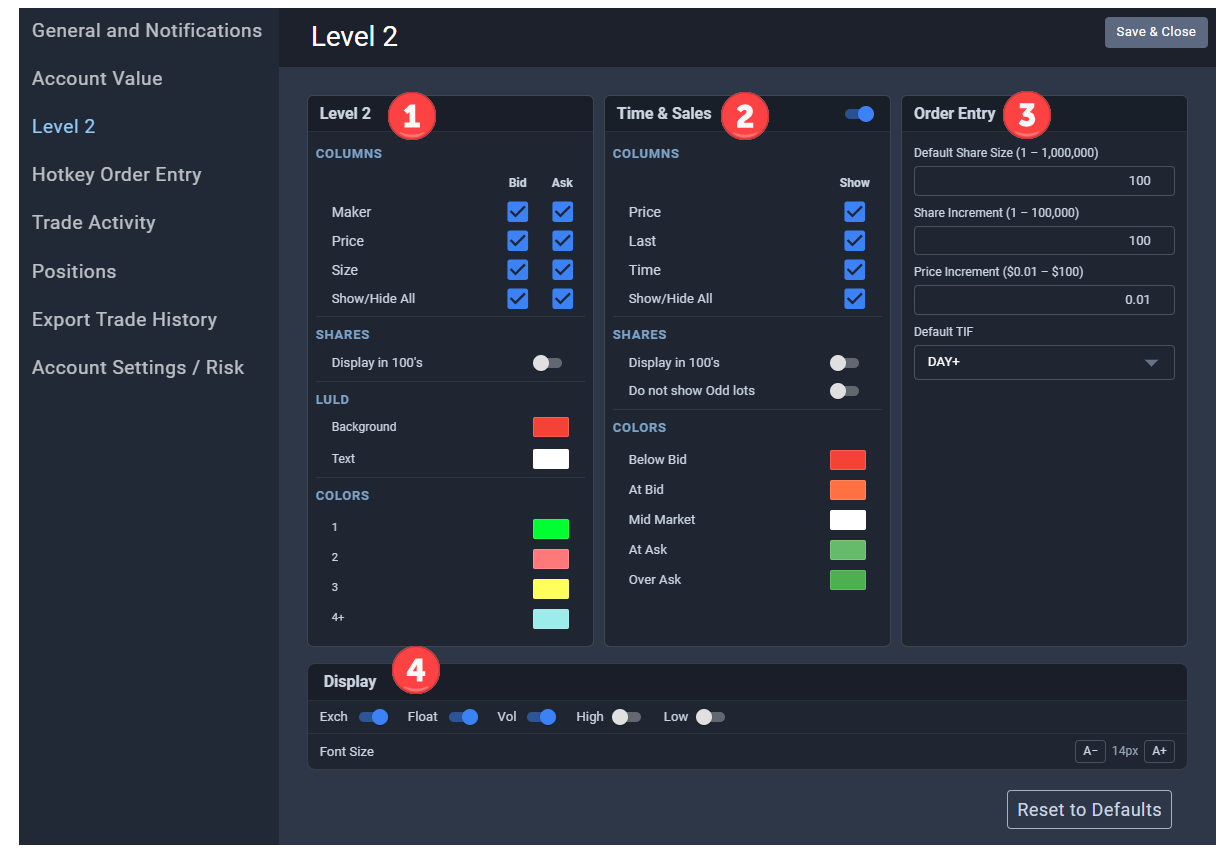
(1) Level 2
Columns - Choose the columns you wish to display for the Bid/Ask in the Level 2.
- Maker - Market Maker / Exchange
- Price
- Size - Number of Shares
- Show/Hide All - Easy way to select all or hide all columns
Shares Display in 100's - Toggle switch to display the full number of shares (default) by Maker or abbreviate it by displaying 1/100th of shares. Some traders prefer to see an abbreviated version to make the large buyers/sellers stand out more. It is really a personal preference based on what works best for you.
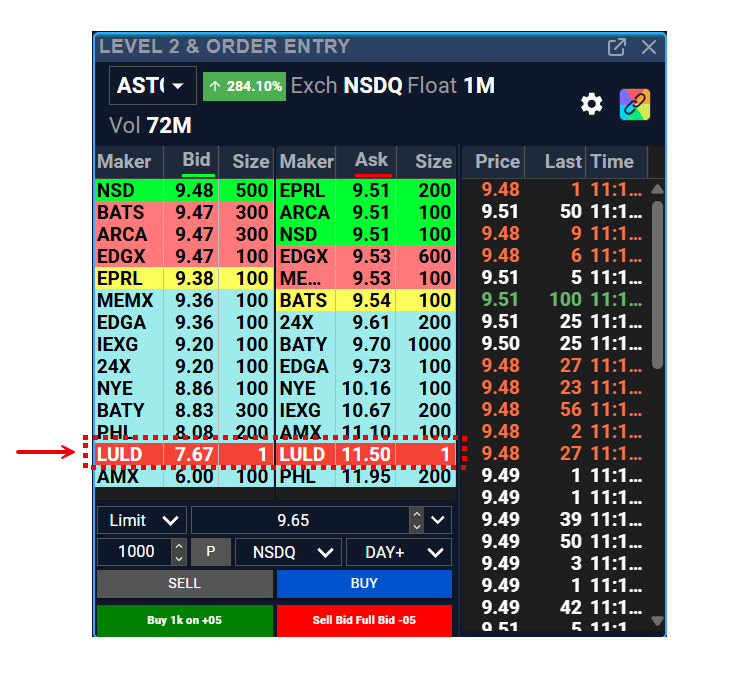
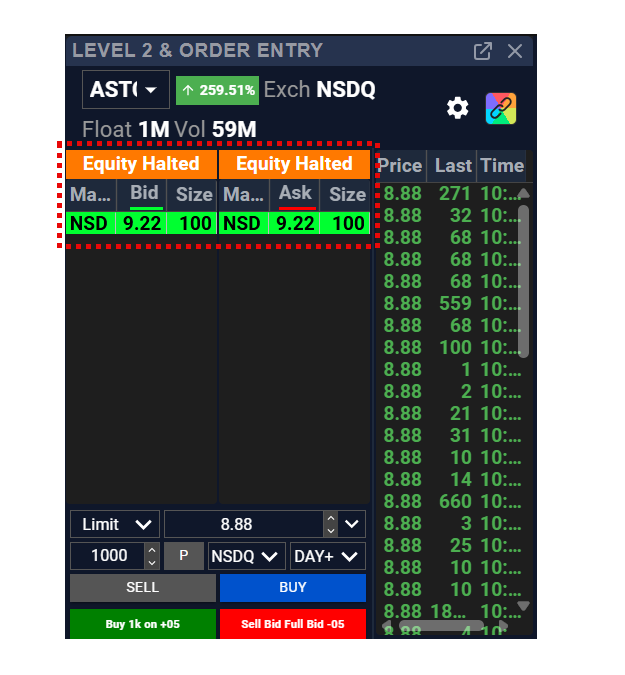
LULD - Level Up Level Down - displays the halt levels for a ticker. The goal is to choose colors that stand out compared to other Level 2 colors. For more information on LULD, see this article. And here is an article regarding Circuit Break Halts.
Pro Tips:
- Clicking on a price under the Bid or Ask will update the limit price displayed in the Order Entry. For example, clicking on $9.51 under the Ask, will update the Order Entry limit price from $9.65 to $9.51.
- Up/Down arrows on your keyboard increase/decrease the price or the share size (depending on which box you click) based on the predefined increments in your settings.
And here is an example of a ticker that is Halted:
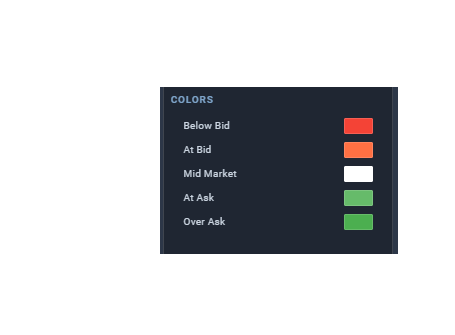
Colors - Choose the colors for the various tiers displayed in the Level 2; Ross's favorite colors are the default setting.
(2) Time & Sales
Columns - Choose the columns you wish to display in the Time & Sales
- Price - Executed order price
- Last - Number of shares traded on the order
- Time - Timestamp for the executed trade
- Show/Hide All - Easy way to select all or hide all columns
Shares
- Display in 100's - Toggle switch to display the full number of shares (default) or abbreviate it by displaying 1/100th of shares.
- Do not show Odd Lots - Toggle on/off the ability to display odd lots (purchase/sale of less than 100 shares. Some traders prefer to reduce the amount of data displayed.
Colors - Choose colors to represent orders filled below, at, or above the Bid/Ask. The colors are important, so it is good to memorize each one. For example, an order on the tape that executes Below Bid, will display as deep red. This is important to know as it can be a sign of weakness for the ticker.
(3) Order Entry
- Default Share Size (1 - 1,000,000) - Sets the share size when you log in or change the ticker.
- Share Increment (1 - 100,000) - Allows you to increase/decrease share size by a set amount.
- Price Increment ($0.01 - $100) - Allows you to increase/decrease price by a set amount.
- Default TIF - Allows you to set an order execution timeframe -- how long an order remains open before it expires.
- DAY - Order will remain open for the trading day (9:30am to 4:00pm ET)
- GTC - Good Till Cancelled orders remain open until they are cancelled by the trader. Orders will execute during any timeframe (premarket, regular, aftermarket) and do not expire for 30 days, if left open. GTC orders can also be be placed when markets are offline and after hours.
- EXT - Extended Sessions orders only execute during premarket and aftermarket, but not during the regular market hours (9:30am to 4:00pm ET).
- DAY+ - Orders execute during any timeframe (premarket, regular, aftermarket), but cancel after 8pm.
(4) Display - governs what is displayed in the Ticker Profile
- Exchange - Denotes the exchange the stock is listed on (e.g., NYSE, Nasdaq)
- Float - Number of shares available to trade; see Stock Float Definition: Day Trading Terminology - Warrior Trading
- Volume - Daily volume from premarket through the aftermarket timeframes (4am ET to 8pm ET).
- High - High price of the day from premarket through the aftermarket timeframes (4am ET to 8pm ET).
- Low - Low price of the day from premarket through the aftermarket timeframes (4am ET to 8pm ET).
- Font Size - Adjust the font size displayed for the Level 2 & Order Entry widget.
Color Grouping - Linking Scanners, Charts, and Order Entry
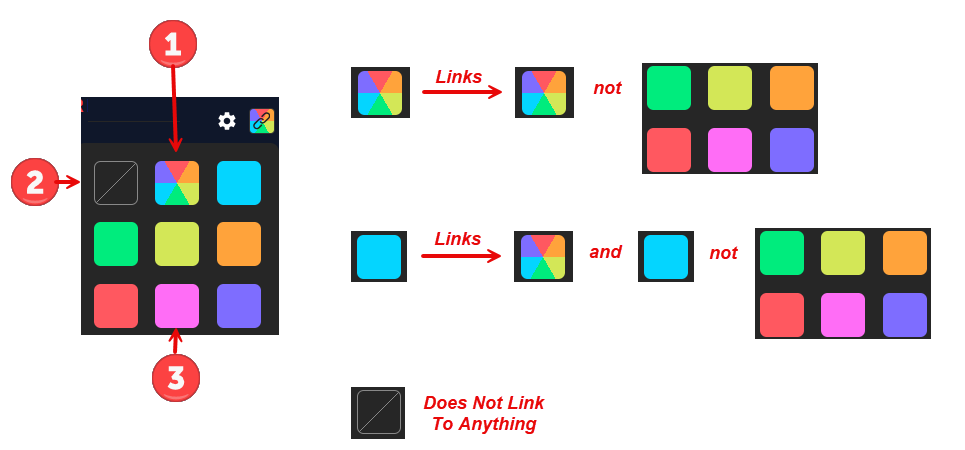
Color Groups
- Universal Color Group - The multi-color setting is a universal link; meaning all other color groups will be automatically linked to it. For example, if you have a green color group on a scanner and you click a ticker in the scanner, any other widget with the universal color link will also display the contents of that ticker.
- Null Color Group - Blocks any color grouping and will not change even if another widget uses the Null Color Group.
- Color Group - Allows you to link a specific widget to another widget when both use the same Color Group (e.g., Pink to Pink).
Color Groups can be found in the upper right corner of your widgets.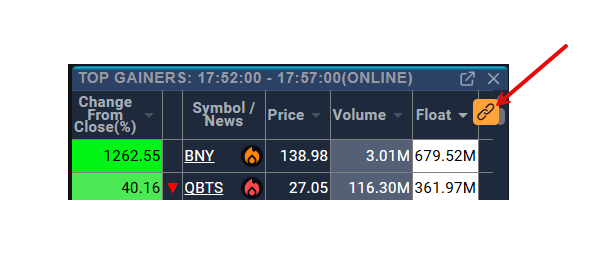
Warrior Trading - Additional Level 2 Resources and Training
Level 2 can be a harder concept to grasp without hands-on learning experience. Be sure to review the Level 2 live/in a simulator in addition to the materials below.
Chapters in the Education Portal related Level 2 and available to Starter and Pro members include:
Day Trading: The Basics
Chapter 7: Level 1 Market Depth & Order Entry
Chapter 8: Level 2 Market Depth & Time and Sales
Part 1: Understanding Level 2
Part 2: Time & Sales (AKA The Tape)
Chapter 9: Order Entry Window and Popular Order Types
Additional Chapters available to Warrior Pro members include:
Chapter 6: Level 2, Tape Reading, and Hot Keys/Buttons
Part 1: Level 2 and Time and Sales + Handout (Level 2 & TIme & Sales: A Visual Explanation)
Part 2: ADFN Prints
Part 3: Circuit Breaker Halts
Part 4: Market Makers
Part 5: PFOF vs Direct Access
Part 6: Order Routing, Order Types, and Adding Liquidity
Part 7: Advanced Hot Keys and Hot Buttons
Part 8: Multi-Account Syncing
Warrior Pro members can also review Ross’s Live Trading Archives and watch the Level 2 windows to see how it is moving before and after Ross enters or exits his positions: Live Trading Archives | WT : Warrior Trading
Here are some additional free resources we have posted on Level 2:
- Level 2 definition: https://www.warriortrading.com/level-2-definition-day-trading-terminology/
- Level 2 market data - quick demo: https://www.warriortrading.com/level-2-market-data-quick-demonstration/
- How to read Level 2 quotes for day trading (longer demo): https://www.youtube.com/watch?v=a2xlibTeVO4
- And : https://www.youtube.com/watch?v=q5DRctM5C-Q
- Spotting breakouts with Level 2: https://www.warriortrading.com/spotting-breakouts-with-level-2/
- Another review from Ross on how he used level 2 to predict a stock breakout: https://www.youtube.com/watch?v=BaZ4R2ovI9k