What are hotkeys and why do traders use them?
Hotkeys are customized keyboard shortcuts programmed into a trading platform, like Lightspeed, Sterling Trader Pro, DAS, or Webull, to instantly execute buy/sell orders, cancel orders, or set stop orders with a few simple keystrokes.
Per Ross - "As you probably know, I use hotkeys a lot. The advantage is that they allow you to get into trades quickly, and sometimes more importantly, get OUT of trades quickly. When I set up hotkeys, for the most part, I design them for quick exits."
TABLE OF CONTENTS
- What are hotkeys and why do traders use them?
- Accessing Hotkey Settings
- Understanding Hotkey Settings
- Building Custom Hotkeys
- Warrior Trading - Additional Education and Resources for Hotkeys
Accessing Hotkey Settings
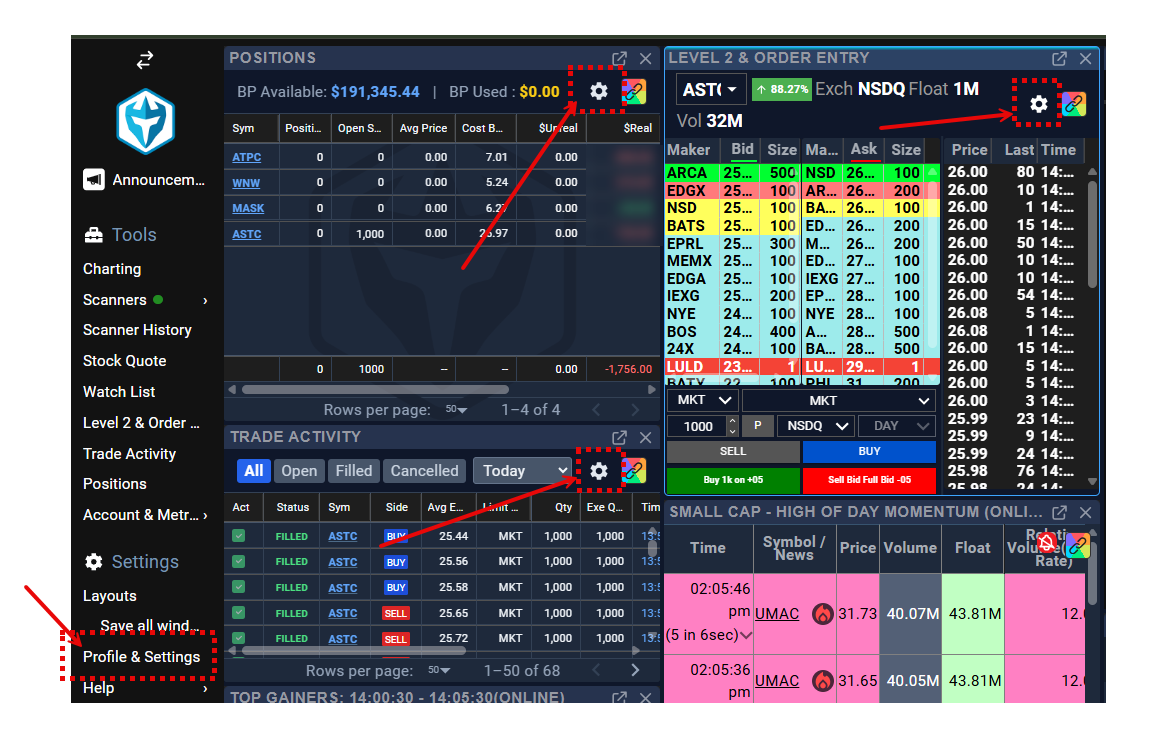
There are several locations available to access Hot Key Settings.
Look for and click the Gear icon from any of the locations highlighted below: 
Click 'Profile & Settings' from the Left Hand Navigation Bar.
Understanding Hotkey Settings
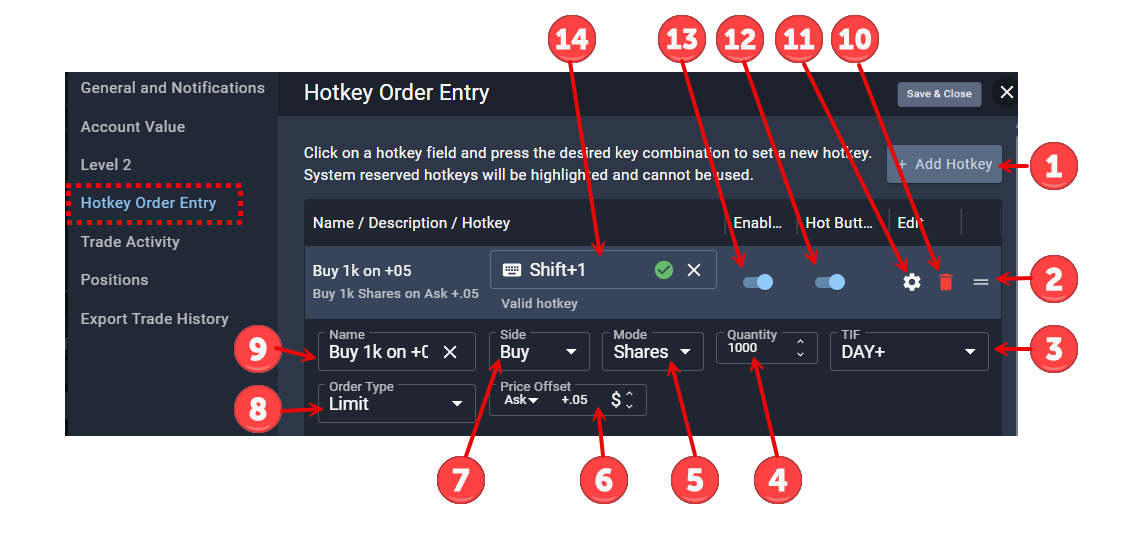
- Add Hotkey - Used to create a new hotkey.
- 'Move' - Click and drag to move and arrange the order of hotkeys.
- TIF - Time In Force.
- DAY - Order will remain open for the trading day (9:30am to 4:00pm ET).
- GTC - Good Till Cancelled orders remain open until they are cancelled by the trader. Orders will execute during any timeframe (premarket, regular, aftermarket) and do not expire for 30 days, if left open. GTC orders can also be be placed when markets are offline and after hours.
- EXT - Extended Sessions orders only execute during premarket and aftermarket, but not during the regular market hours (9:30am to 4:00pm ET).
- DAY+ - Orders execute during any timeframe (premarket, regular, aftermarket), but cancel after 8pm.
- Quantity - Set the default number of shares or % of position/buying power based on the 'Mode' for the hotkey.
- Mode - Determines what is executed.
- Shares
- % Position - Percentage of an open position.
- % Buying Power - Percentage of available buying power.
- Open Position - Used to fully close an position.
- Price Offset - Available for Limit, Stop, and Trailing Stop 'Order Types'.
- Side
- Buy
- Sell
- Order Type
- Limit
- Market ( Market order types are only available as DAY time in force times, from 9:30 am EST to 4 pm EST )
- Stop - See Stop Limit and Stop Market
- Trailing Stop - Automated order that follows he stock price at a set distance (% or $ amount) to lock in gains and limit losses.
- Cancel Orders - All Symbols
- Cancel Orders - Current Symbol
- Name - Description for hotkey.
- Delete - Removes the hotkey.
- Settings - Opens the hotkey settings.
- Hot Button - Creates and displays a Hot Button on the Level 2 & Order Entry widget.
- Enables - Enables or disables a hot key.
- Hotkey - Keystrokes required to execute a hotkey; must start with a modifier key (e.g., Shift, Alt, Ctrl, Cmd) and at least one other non-modifier key.
PRO TIP! Please keep in mind all the hotkeys that have numbers use the "top of the keyboard" numbers. They are not connected to the numpad on the right of many keyboards. Most are designed to be executed with only your left hand.
Building Custom Hotkeys
Trailing Stop Hotkey
A trailing stop is a dynamic stop order that automatically adjusts as the price of a security moves in your favor, rather than being set at a fixed price level.
Key Concepts:
Trail Amount — The distance (in dollars/cents or percentage) the stop is set below the current market price (for a long position). Example: if a stock is at $3.00 and you set a trailing stop of $0.10, your stop is placed at $2.90.
Trail Increment — The amount the stock needs to move in your favor before the stop adjusts upward. Example: if the trail increment is $0.05, the stop only moves up once the stock rises another $0.05. If no increment is set, the stop updates on every $0.01 price increase.
Automatic Adjustment — As the price rises, the stop follows it upward automatically. However, if the price falls, the stop stays in place and triggers a sell if the stock drops to that level.
Example:
Stock is at $3.00, trailing stop = $0.10, trail increment = $0.05
- Stop is initially set at $2.90
- Price rises to $3.05 → stop moves up to $2.95
- Price then drops → stop stays at $2.95 and triggers a sell if the stock hits that level
Important Reminder:
⚠️ Stop orders only trigger during regular market hours (9:30 AM – 4:00 PM EST). They do NOT trigger pre-market.
Steps to Create a Trailing Stop Order:
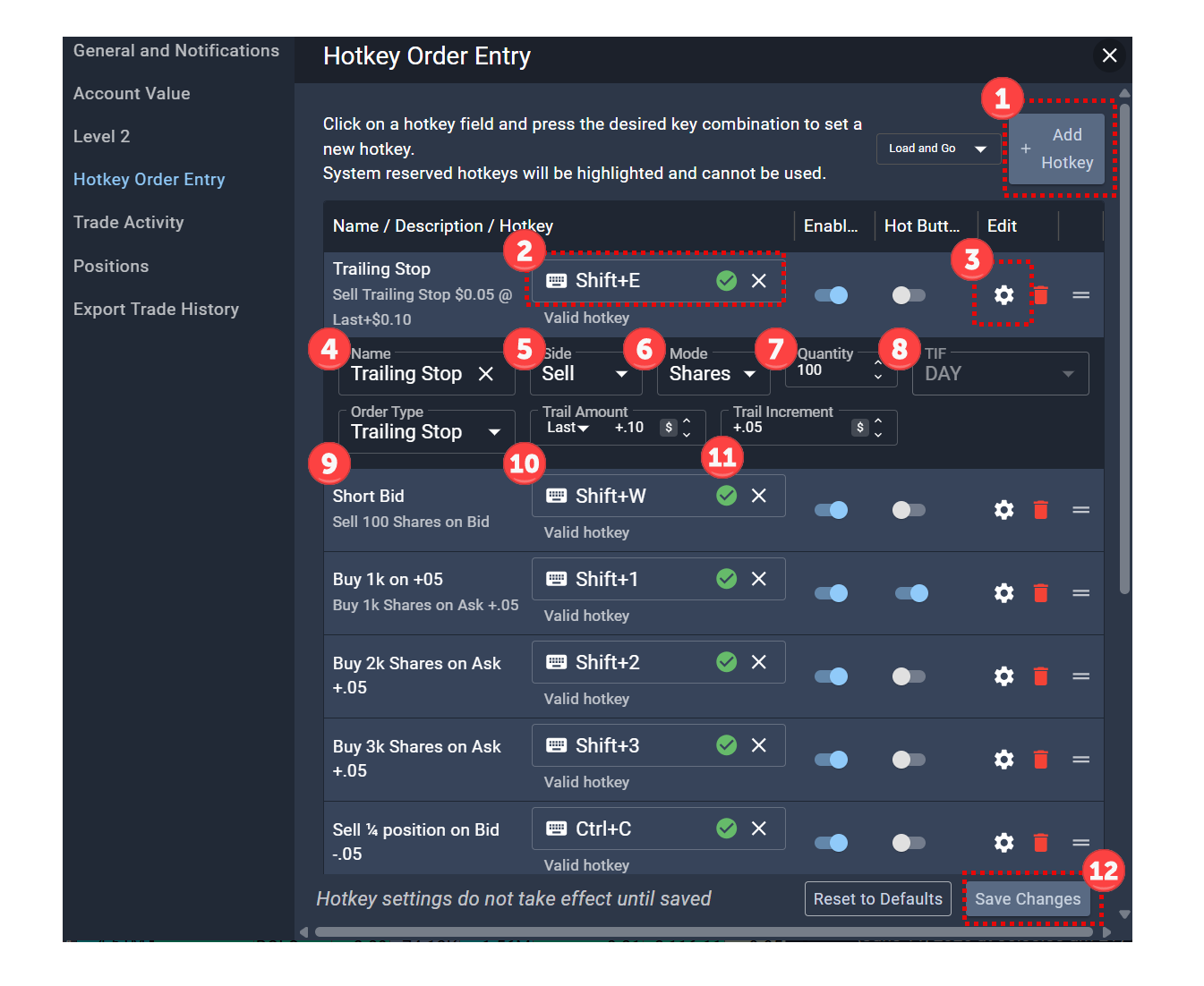
- From the Hotkey Order Entry screen, click Add Hotkey. Note the default is 'Load and Go' so the order will execute immediately. You can change from the dropdown box next to the 'Add Hotkey button'.
- Enter your unique keys - two are required. The green checkmark indicates this is a valid and available key combination. Note due to personal keyboard layouts and settings, not all hotkey combinations may work. Make sure to use the numbers lined across the top of your keyboard, not the ones in the keypad to the right (these will not work).
- Click the 'Gear' icon to open the Settings panel for this hotkey.
- Enter your unique name for this key.
- Enter the Side (Buy or Sell).
- Mode - Choose Shares, % of Position, % of Buying Power, Open Position
- Quantity - Shares or % based on the 'Mode' selected.
- TIF - Day: Stop Orders Do not trigger premarket, so 'Day' is automatically selected.
- Order Type - Click Training Stop
- Trail Amount - For this example, a stop is set at $0.10 below the current market price.
- Trail Increment - For this example, the Stop Order moves up $0.05 for every $0.05 the current market price goes up.
- Click to save changes.
Stop Order Hotkey
A stop order is an order that automatically triggers and is sent to the market when a stock crosses a specified price level — helping traders manage risk without having to manually monitor the position.
Key Concepts:
Stop Price — The price level that, when crossed, triggers the order. When you select a stop order type, the Price field becomes your stop price. Example: if a stock is at $5.00 and you set a stop at $4.80, your order triggers if the price drops to $4.80.
Stop Market Order (S-STP) — When the stop price is hit, a market order is released immediately, filling at the best available price. Note: S-STP (Server-side Stop Market) is only available for execution destinations that support market orders.
Stop Limit Order — When the stop price is hit, a limit order is released instead of a market order. This gives you more control over your fill price but carries the risk of not filling if the price moves too fast past your limit. To use this, enter your stop price AND a separate limit price.
Order Duration — Only DAY stop orders are supported. Stop price checks only occur between 9:30 AM and 4:00 PM ET. All server-side stop orders are automatically cancelled if market quotes are lost or a system malfunction is detected.
NBBO Pricing — Only National Best Bid and Offer (NBBO) prices are used to determine whether the stop price has been reached. The order will not elect if the market is crossed.
Example:
Stock is trading at $5.00, stop price set at $4.80
- Order sits dormant while price stays above $4.80
- Price drops to $4.80 → stop is triggered, a market (or limit) sell order is released automatically
- You are filled at or near $4.80 (market stop), or at your limit price if using a stop limit
Important Reminder:
⚠️ Stop orders only trigger during regular market hours (9:30 AM – 4:00 PM ET). They do NOT trigger pre-market.
Profit Target Hotkey
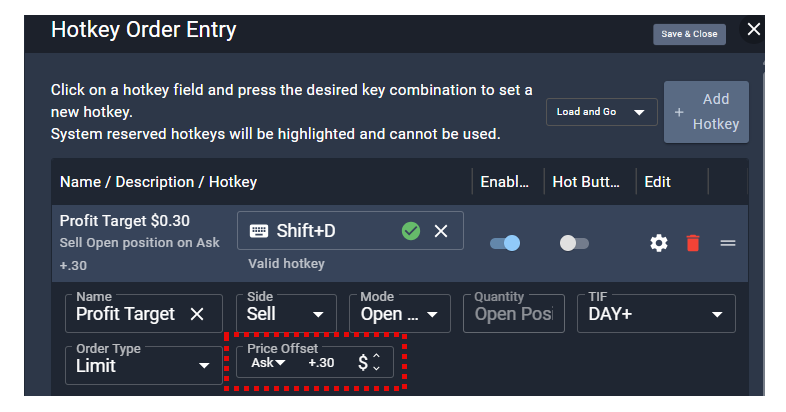
A profit target hotkey can be used to exit a trade based on a fixed amount price increase. Ross uses $0.10, $0.20, and $0.30, as his profit target hotkeys to support various ticker prices. For example, a $0.10 offset is used to take profit on a low-priced stock, like those trading at or below $1.00.
In the following example, a Profit Target Hotkey was created to sell the open position using a Limit Order with a $0.30 profit target (offset) using Shift+D. Traders can execute this order using the hotkey immediately after the initial buy order is filled.
Example:
Stock is trading at $5.00 with a profit target of +$0.30 or $5.30
- Order sits dormant while price stays below $5.30
- Price increases to $5.30 → profit target is triggered, a limit order is released immediately
- You are filled at or better than $5.30
Short Hotkey
A short order is a trade where you sell shares you don't own (borrowed from your broker) with the expectation that the stock price will fall, allowing you to buy them back cheaper and profit from the difference .
Key Concepts:
Borrowing Shares — To short a stock, your broker must have shares available to lend you. Not all stocks are shortable. Stocks are classified as either Easy to Borrow (ETB) or Hard to Borrow (HTB). If a stock is HTB, your broker may not have enough shares to lend, may require special approval, or may charge additional borrow fees — especially for overnight holds.
Short Selling — You sell the borrowed shares at the current market price, creating a negative share balance (e.g., -1,000 shares). You profit if the price drops, because you buy the shares back at a lower price.
Covering — To close a short position, you must "cover" by buying back the shares you borrowed. Like a long position, you can scale out in increments. Once covered, the shares are returned to the broker.
Short Sale Restriction (SSR) — If a stock drops 10% or more in a single day, SSR is triggered. Under SSR, you can only short on upticks — meaning you must wait for the price to be moving up before entering a short. Orders are placed at the Ask Price and require a buyer on the other side.
Order Types for Shorting — Short orders can be placed as:
- Limit orders — You specify the price you want to short at and wait for it to fill.
- Market orders — You short at the best available price immediately.
- Stop orders — Used to manage risk on an existing short position (a buy stop above your entry to cap losses).
Example:
Stock is trading at $10.00, you short 1,000 shares (borrow and sell)
- You now hold -1,000 shares at $10.00
- Price drops to $8.00 → you cover (buy back 1,000 shares at $8.00)
- Profit = $2.00 × 1,000 = $2,000 (minus any borrow fees)
- If price rises instead to $12.00 and you cover → Loss = $2,000
Important Reminders:
⚠️ Short positions carry theoretically unlimited risk — a stock can keep rising indefinitely, so always use a stop loss to protect yourself.
Warrior Trading - Additional Education and Resources for Hotkeys
Chapters in the Education Portal related Hot Keys and available to Starter and Pro members include:
Chapter 10: Hot Keys & Hot Buttons
- Part 1: Hot Keys
- Part 2: Hot Buttons
Additional Chapters available to Warrior Pro members include:
Chapter 6: Level 2, Tape Reading, and Hot Keys/Buttons
- Part 1: Level 2 and Time and Sales + Handout (Level 2 & TIme & Sales: A Visual Explanation)
- Part 2: ADFN Prints
- Part 3: Circuit Breaker Halts
- Part 4: Market Makers
- Part 5: PFOF vs Direct Access
- Part 6: Order Routing, Order Types, and Adding Liquidity
- Part 7: Advanced Hot Keys and Hot Buttons
- Part 8: Multi-Account Syncing
Warrior Pro members can also review Ross’s Live Trading Archives: Live Trading Archives | WT : Warrior Trading